Staff, Credentials & Organization
This page covers the three modules that describe who and where: the organization hierarchy (/org), the
staff directory and profiles (/staff), and the credential & competency engine (/credentials) — which the
product spec calls the eligibility backbone, because it's the single most important subsystem in
ShiftPilot. Nearly everything else — the schedule grid, coverage alerts, swap eligibility — ultimately asks this
subsystem one question: is this person allowed to do this?
Organization hierarchy
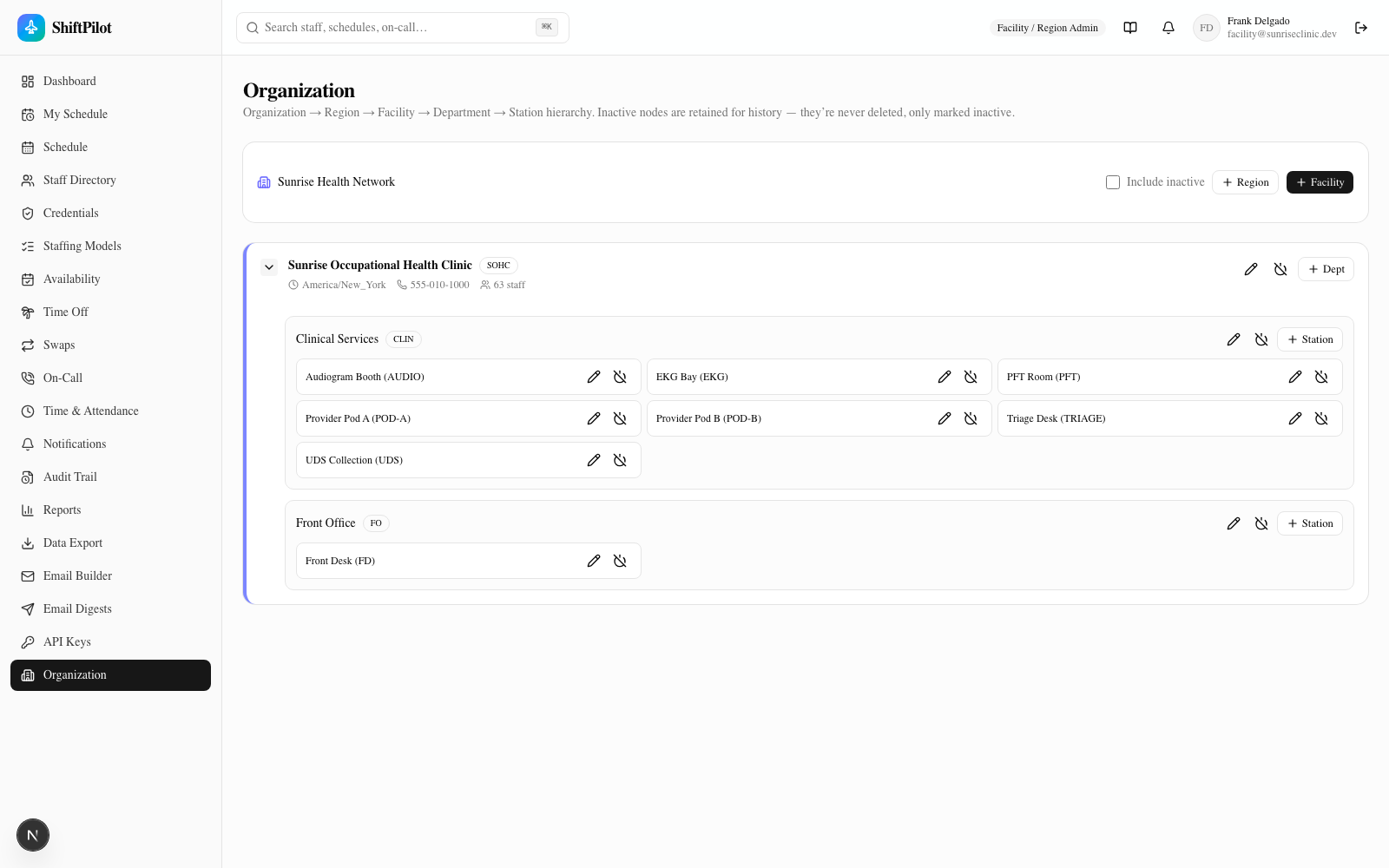
/org models where care happens as a configurable hierarchy:
Organization → Region (optional) → Facility → Department → Station
- Organization is the top-level tenant (one per deployment).
- Region is optional — a way to group facilities across a geography. A single-clinic customer never has to populate it.
- Facility is a physical site: name, abbreviation, timezone, phone, address, and an optional Region.
- Department groups related work inside a facility (e.g. "Clinical Services", "Front Office").
- Station is the atomic schedulable place — "Audiogram Booth," "Triage Desk," "EKG Bay." It's what actually shows up as a row/column in the scheduling grid and what staff are qualified into.
Every level can be created and edited from this one page (Facility Admin and above): add a Region, add a Facility under it, expand a facility to add Departments, expand a department to add Stations.
Nodes are never hard-deleted — only deactivated. Every level has an active/inactive flag with a power/power-off toggle. This matters because historical schedules and audit entries reference these nodes by ID; deleting a station a person was scheduled into two months ago would corrupt history. Instead, retiring a station, department, region, or facility just flips it inactive — it disappears from pickers and defaults to hidden in list views, but everything that already pointed to it keeps working. Every list view (org tree, staff directory, credential filters) carries an "Include inactive" checkbox to bring retired nodes back into view when you need to audit or report on history.
The role taxonomy
Every staff member has a specific Role Type (e.g. "Attending Physician," "Charge RN," "Medical Assistant"), and every Role Type belongs to exactly one of five Role Groups:
| Role Group | Example Role Types |
|---|---|
| Physician Faculty | Attending Physician, Faculty Physician |
| Mid-Level / APP | Nurse Practitioner, Physician Assistant, CRNA |
| Clinical Nursing | RN, Charge RN, LPN |
| Clinical Support / Technical | Medical Assistant, Clinical Tech (PFT/EKG/Audio), Phlebotomist |
| Non-Clinical / Front Office | Front Desk, Registration, Scheduler |
This two-level taxonomy (src/components/staff/taxonomy.ts) is what lets the directory, credential reports, and
coverage requirements pivot by group — "how many Clinical Nursing staff do we have at this facility" is a native
filter, not a manual tally. Coverage requirements and eligibility rules can restrict by specific Role Type or by
the broader Role Group, and role type/group is shown everywhere a person's identity shows up (directory rows,
profile header, credential expiry rows).
Staff directory
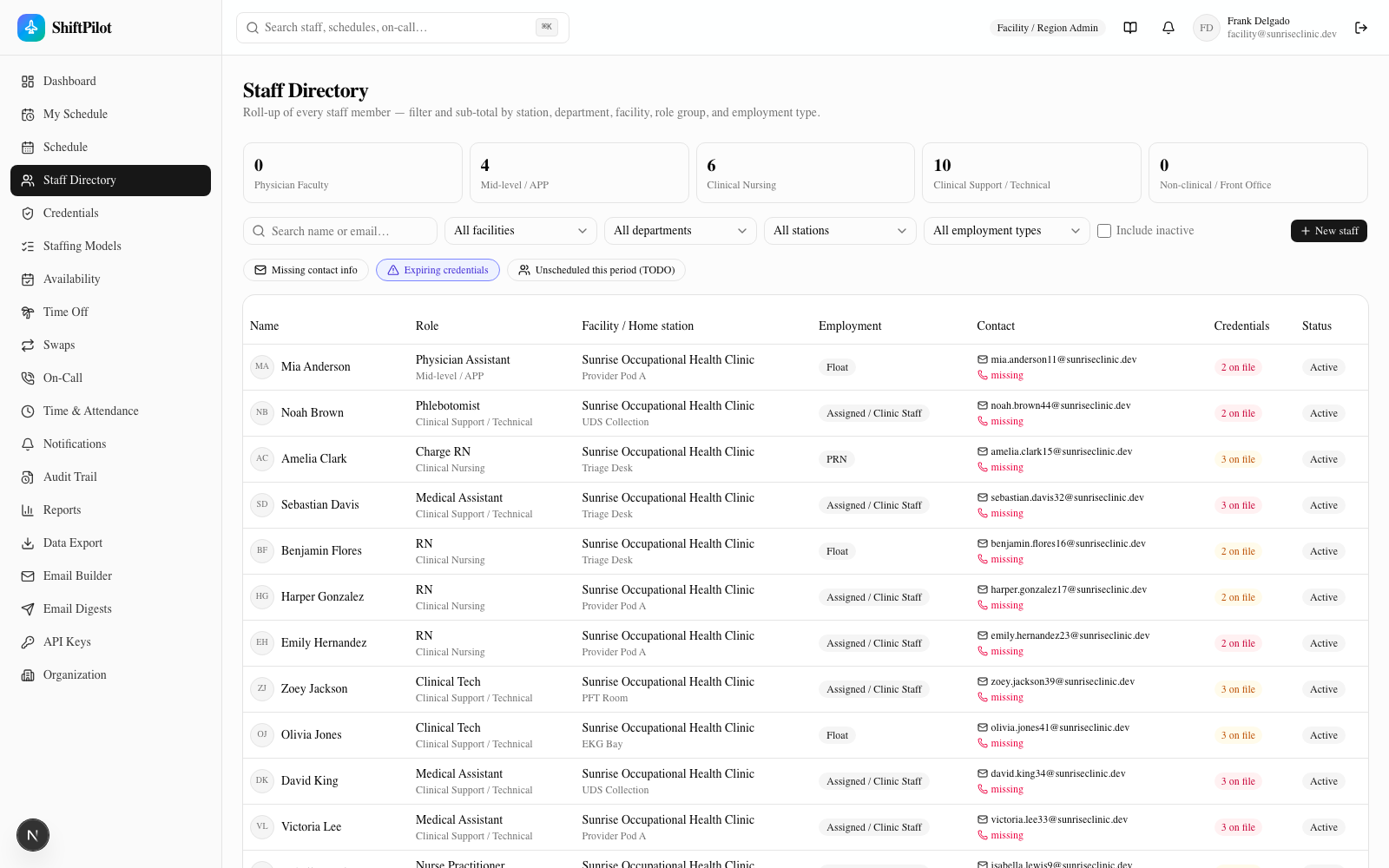
/staff is the roll-up directory — every staff member in one searchable, filterable table, with role-group
count tiles across the top that double as quick filters.
Filters: free-text search (name/email), Facility, Department, Station, Role Group, Employment Type, and an "Include inactive" checkbox (off by default, so terminated/retired staff stay out of the way).
Saved cuts (one-click chips above the table):
- Missing contact info — anyone missing an email or a mobile number, so onboarding gaps are easy to sweep.
- Expiring credentials — anyone with a competency that's expired, or expiring within the 60-day lead time used by the credential engine (see below).
- Unscheduled this period — reserved for when directory filters need assignment data from the scheduling module; shown as a disabled/TODO chip in this build.
Employment type drives scheduling behavior and has three values:
| Type | Home location | Self-service defaults |
|---|---|---|
| Assigned / Clinic Staff | Has a home station, follows a recurring set schedule | Can swap: yes · Can post availability: no |
| Float | Qualified across multiple locations, scheduled into open needs by a scheduler | Can swap: no · Can post availability: yes |
| PRN | Picks up open/HOT shifts, no fixed target | Can swap: no · Can post availability: yes |
Those are sensible starting defaults set at creation time — each toggle can still be flipped per person on their profile (see below). Facility Admins and Schedulers can create new staff directly from this page (New staff), setting name, contact info, Role Type, Facility, home Station, and Employment Type up front.
A staff profile
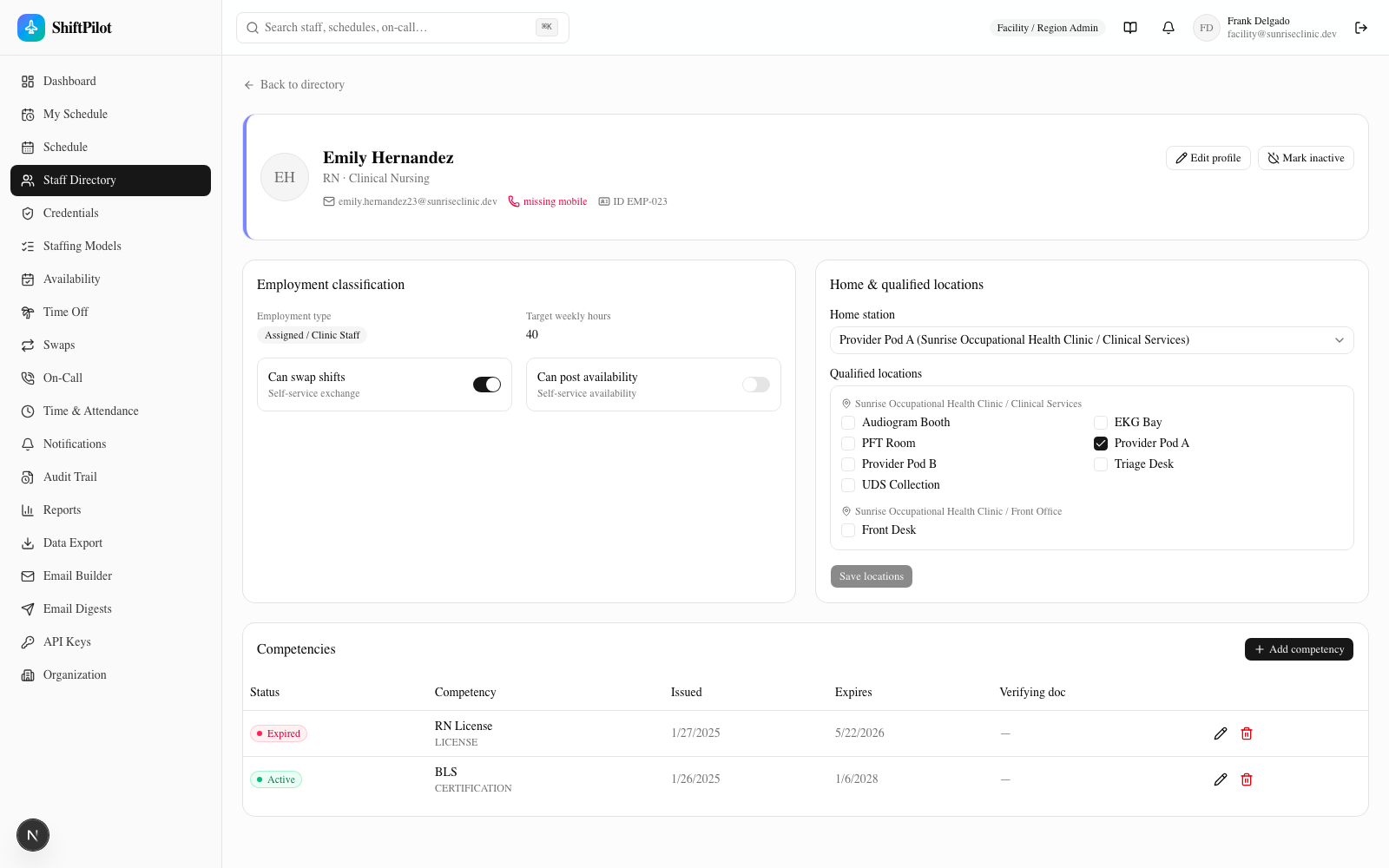
/staff/[id] is the full record for one person, in four parts:
- Identity & contact (header card) — name, display name, employee ID, email, mobile, pager, secure-message handle, role type/group. Missing email or mobile is flagged in red inline, same as in the directory. Edit profile opens a dialog covering all of this plus Role Type, Facility, Employment Type, and target weekly hours; Mark inactive / Reactivate flips the active flag (staff are never deleted, matching the org-node pattern above — inactivation records a timestamp and is fully reversible).
- Employment classification — Employment Type, target weekly hours (informational, feeds scheduled-vs-actual comparisons — not payroll), and the two self-service toggles: Can swap shifts and Can post availability. These are per-person switches, independent of the employment-type defaults above, so an exception (e.g. an Assigned nurse who's also allowed to post availability) is just a toggle away.
- Home & qualified locations — one Home Station, plus a checklist of every Station this person is qualified to work, grouped by Facility/Department. Reassigning someone to a new home is an edit here, not an inactivation — the person's history stays attached to their one profile.
- Competencies — the inline editor for this person's
StaffCompetencyrecords, and the part of the page that matters most.
The inline competency editor
Each row in the Competencies table is one StaffCompetency: a Competency (from the catalog — see below), a
Status (Active / Pending / Expired), an issue date, an expiration date, a verifying document
reference, and free-text notes. Add competency opens a dialog to attach a new one from the catalog with all
those fields; the pencil icon on an existing row opens the same dialog pre-filled to edit status, dates, doc, and
notes in place; the trash icon removes the record entirely. The form rejects an issue date that's after the
expiration date. Each row's left-hand badge shows the computed traffic-light status (see the expiration
lifecycle below) so an admin can see at a glance, without leaving the profile, which of a person's credentials
need attention.
The credential & competency engine — the eligibility backbone
/credentials is where the competency catalog and the expiration lifecycle live at the enterprise level, but
the engine itself — evaluateEligibility() in src/lib/eligibility.ts — runs everywhere someone is
matched to a role: the schedule grid on drag/drop, open-shift fill lists, swap eligibility, and the coverage
engine. A staff member is eligible for a role/station if and only if every competency it requires is present
with status Active and not expired as of the shift date, their Role Type/Group matches what's allowed, and
the station is one of their qualified locations.
Behavior on assignment
The engine doesn't just answer yes/no — it defines exactly what happens when someone tries to assign an ineligible person:
| Situation | Result |
|---|---|
| Eligible drop | Assignment succeeds normally. |
| Ineligible drop, actor has no override permission | Blocked, with an inline explanation naming exactly what's missing (e.g. "Jordan RN is missing: EKG competency"). |
Ineligible drop, actor has canOverrideCompetency | Soft-allowed with a mandatory reason. The assignment is marked as an override/exception, a Competency Violation alert is raised and persists on the schedule, and an audit entry captures the missing competency and the stated reason. |
This is what makes the "if they're forced into a role, it shows up as an alert" requirement real rather than aspirational — an override is never silent. See Scheduling Grid & Coverage for exactly where this shows up during drag-and-drop and how the resulting exception surfaces in the coverage banner.
The competency catalog
Every competency in the enterprise catalog has one of four types:
| Type | Examples | Behavior |
|---|---|---|
| Skill | Audiogram, EKG, PFT, UDS Collection, Venipuncture | Gates assignment to the matching service/station |
| Certification | BLS, ACLS, PALS | Gates and/or warns; expiry-tracked |
| License | RN License, Medical License, DEA | Expiry-tracked; expiry can block scheduling by policy |
| Special | "Authorized to Give Injections," site-specific privileges | Fully custom, unlimited per person |
The Competency catalog tab on /credentials is where the catalog itself is managed (Facility Admin and
above): create/edit/delete a competency, set its type and description, and see how many staff currently carry
each one.
The expiration lifecycle
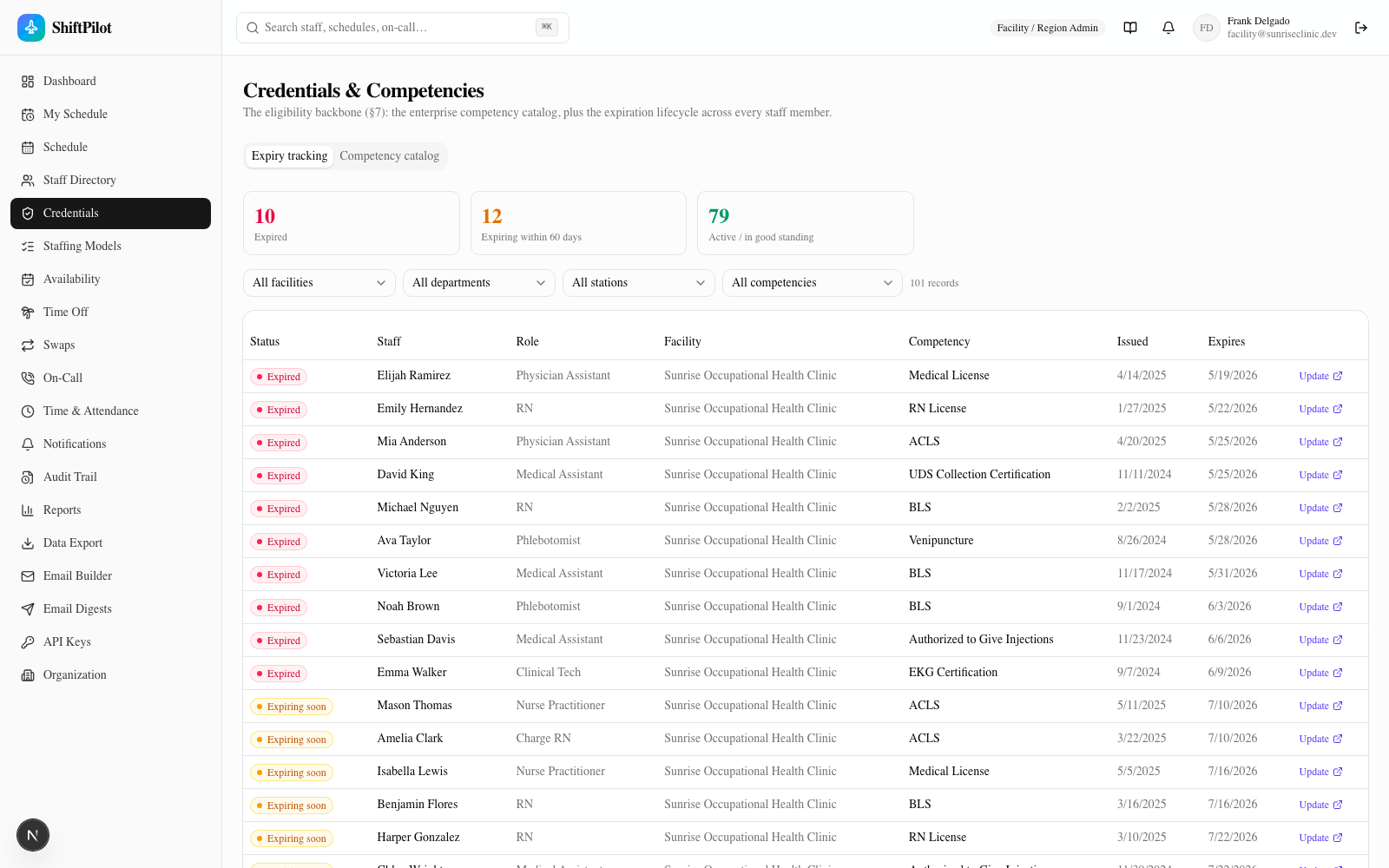
The Expiry tracking tab is the enterprise-wide view of every StaffCompetency record, color-coded by the
same traffic-light rule used everywhere else (computeCredentialStatus()):
- Green — Active, and either no expiration date or expiration more than 60 days out.
- Amber — expiring within the 60-day lead time. Approaching, not yet a problem.
- Red — status is Expired, or the expiration date has already passed.
The three count tiles at the top (Expired / Expiring within 60 days / Active) double as filters — click one to narrow the table to just that status — and can be combined with Facility, Department, Station, and Competency filters to scope down to, say, "expired BLS certs at one facility." Every row links straight to Update, which jumps to that person's profile with the competency editor ready to record the renewal. This same view is what feeds recertification planning and the credential-compliance reports covered in Notifications, Audit & Reports.
Credential expiry automation & renewals
Credentials no longer rely on someone remembering to check them. ShiftPilot scans competencies on a schedule and fires expiry notifications at 60, 30, 7, and 0 days before a credential lapses — routed to the credential holder and their supervisor of record, plus anyone subscribed. Each threshold fires once (it won't spam). Past-expiry credentials were already blocked from scheduling by the eligibility engine; this closes the loop by warning people in time to act.
Staff (or an admin on their behalf) submit a renewal with the proposed new issue/expiration dates and supporting document, right from the profile's competency row. An admin approves or denies it; on approval the new dates and document are applied to the competency, its status returns to active, and the expiry clock resets.
Station operating hours
Each station can carry per-weekday operating hours (open/close per day, or closed). Edit them in the station dialog under Organization; the station row shows a compact summary ("Mon–Fri 08:00–17:00"). The hours are available to the scheduling and reporting layers as the definition of when a station is actually open.