Dashboard & My Schedule
Everyone lands somewhere different after login, but two things are true for every role: the command-center dashboard is the first thing schedulers and admins see, and every logged-in user with a staff profile gets a personal schedule. This page covers both, plus the header search box that gets you anywhere fast.
The Command-Center Dashboard (/)
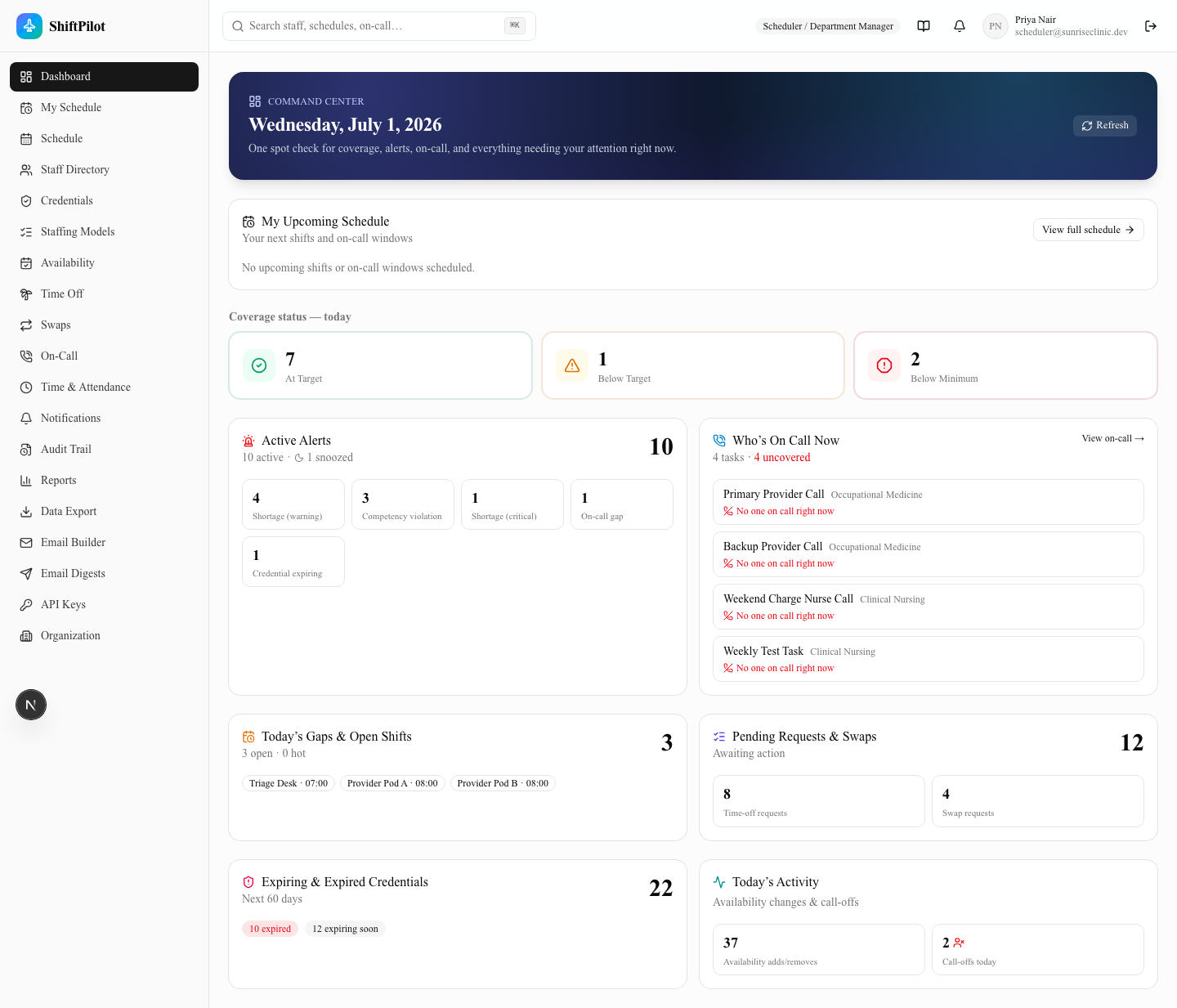
The dashboard is a single spot-check for "what needs my attention right now," built by fetching one
/api/dashboard payload that pulls live from the eligibility, coverage, alerts, and audit systems described in
Getting Started. Nothing here is cached beyond the page load — hit Refresh in the
header banner (or reload) and every tile recomputes from current data. Org-wide tiles (coverage, alerts, on-call,
open shifts, requests, credentials, activity) only show up for roles with org-level visibility — Scheduler,
Charge/Lead, Facility Admin, Enterprise Admin, System Admin, On-Call Coordinator, and Auditor. Every number on the
dashboard is clickable: clicking a tile or a count opens a drilldown dialog with the underlying rows.
Coverage status — today

Three tiles summarize every coverage window generated by the coverage engine for today's date:
| Tile | Meaning |
|---|---|
| At Target | Assigned headcount meets or exceeds the staffing model's target for that station/service/window. |
| Below Target | Assigned headcount is at or above the minimum, but below target — a soft shortage (SHORTAGE_WARNING). |
| Below Minimum | Assigned headcount is below the required minimum — a hard shortage (SHORTAGE_CRITICAL). |
Clicking a tile opens a table of the specific station/service windows behind that count, each showing assigned/minimum/target as a fraction so you can see exactly how short (or how comfortably staffed) a window is. See Scheduling Grid & Coverage for how these same numbers drive the shortage banner on the grid itself.
Active Alerts
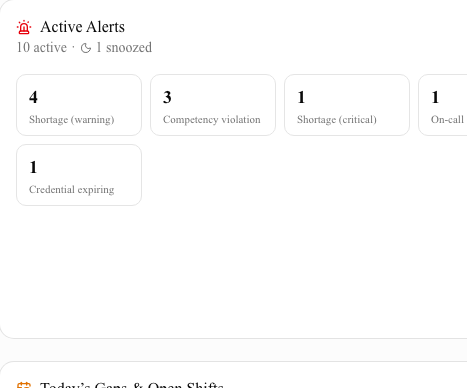
Rolls up every currently-active alert (not snoozed) by type — shortage warnings/criticals, competency violations, credential expirations, double-bookings, overtime risk, time-off conflicts, and on-call gaps — with a snoozed count called out separately. Click any type chip to see the individual alerts: severity, message, where (station/service/staff), and date.
Who's On Call Now
Shows every on-call task that's currently active, with who's covering it (name, tier — Primary/Backup/etc. — and the time window). A task with nobody assigned to the current window is called out in red as "No one on call right now," and rolls into the panel's uncovered count. For the full on-call rotation model and how gaps get filled, see On-Call & Time Tracking.
Today's Gaps & Open Shifts
Lists shifts today that are unassigned (OPEN) or urgently unassigned (HOT) — the same open-shift states you'd
see on the scheduling grid. The card shows up to six as badges with a "+N more" link; the drilldown lists every
one with its status, station, service, and time.
Pending Requests & Swaps
Splits into two counts — pending time-off requests and pending swap requests — each opening its own drilldown. The swap drilldown shows the swap type and the from-staff → to-staff direction for each item. Approving/denying happens on the Time Off and Swaps pages, not from this panel; this is a "how much is in my queue" view. See Availability, Time Off & Swaps for the approval workflow.
Expiring & Expired Credentials
Counts staff competencies expiring within the next 60 days, split into expired (already lapsed) vs. expiring soon. This is the same underlying data that powers the eligibility engine's credential checks — a station requiring a credential that's expired will start failing eligibility for that person the moment it lapses. See Staff, Credentials & Organization for the credential catalog and expiration handling.
Today's Activity
Two counts: availability changes (added/removed) and call-offs, both scoped to today. Useful as a quick "did anything change since I last looked" check without digging into the audit trail.
Close-up: Active Alerts & Who's On Call
My Upcoming Schedule widget
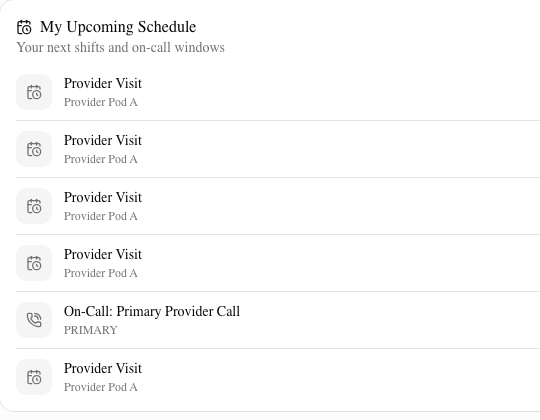
Right below the command-center banner, every logged-in user with a linked staff profile sees a My Upcoming
Schedule card — their own next shifts and on-call windows, merged and sorted by date, capped at six items. This
shows up regardless of role: a Provider/Staff account sees their own clinical shifts, an On-Call Coordinator sees
their own on-call tasks if they have any, and so on. If the account isn't linked to a staff profile, the card
says so instead of showing an empty schedule. A View full schedule button links to /my-schedule for the
complete picture.
The My Schedule page (/my-schedule)
The full personal-schedule page has three tabs: Upcoming, Past, and Calendar Sync.
Upcoming
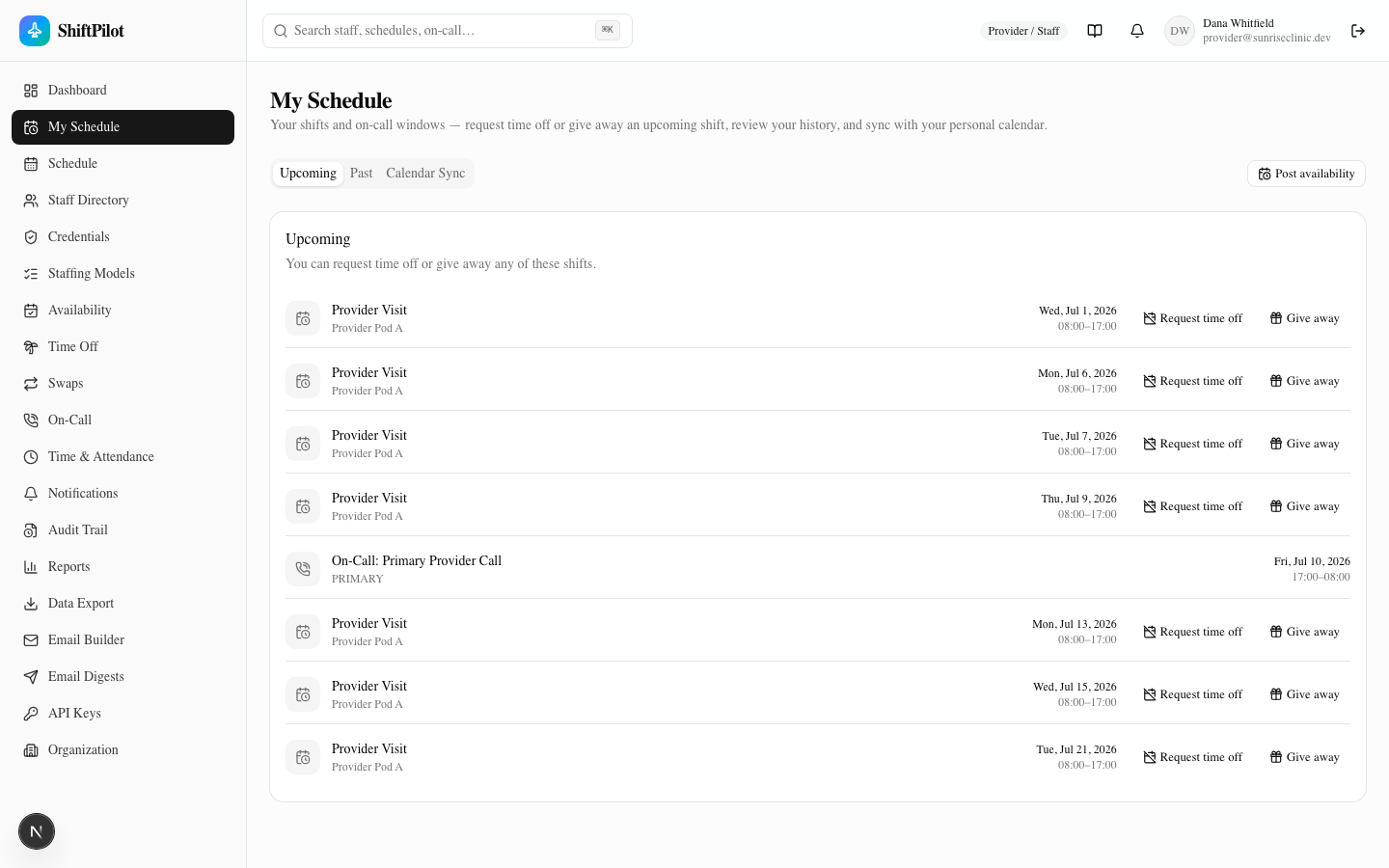
Every future shift and on-call window, in date order. Each shift row (on-call rows don't get these actions) has two buttons:
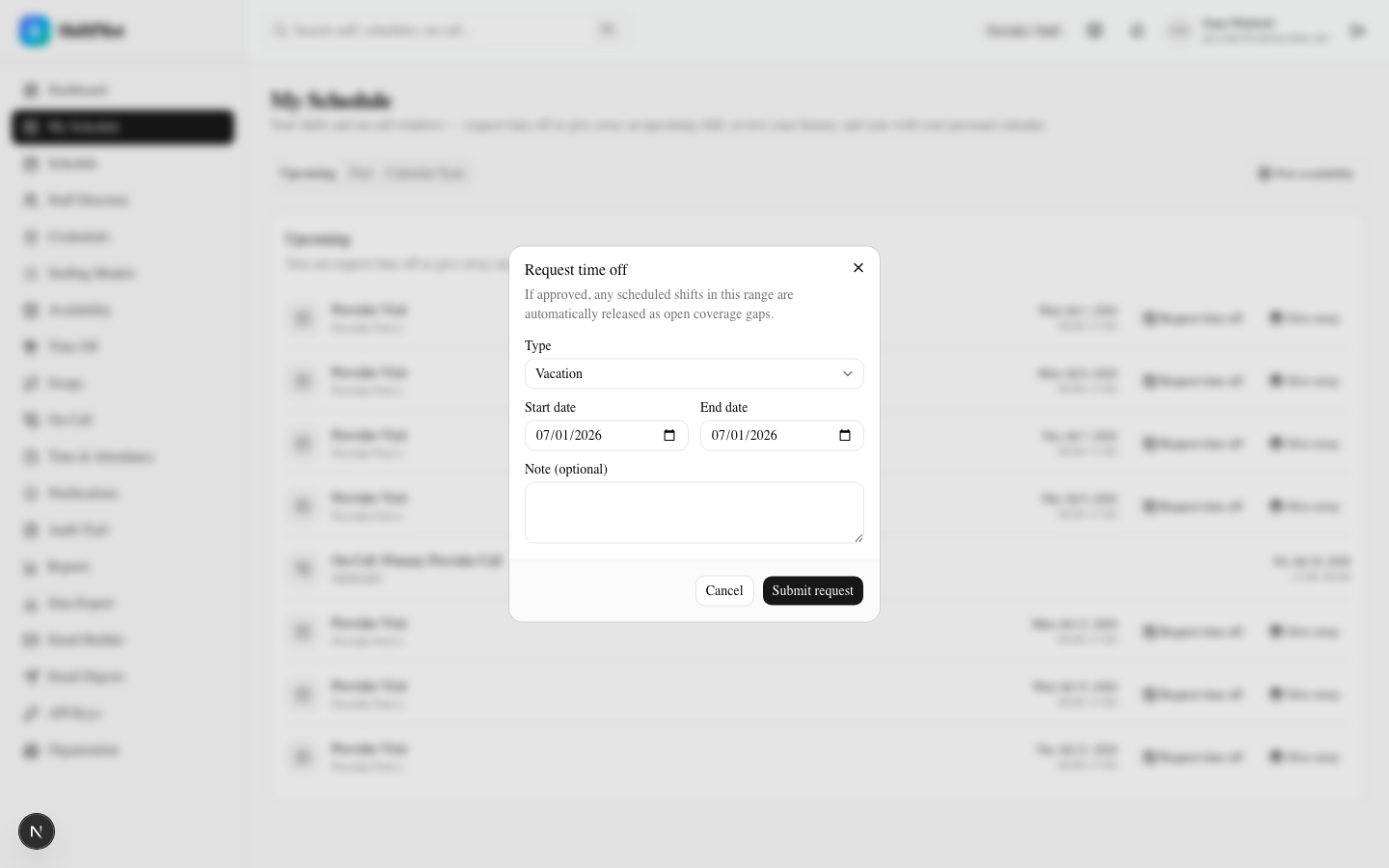
- Request time off — opens a dialog pre-filled with that shift's date, where you pick a type (Vacation, Sick, Education/CME, Jury Duty, Other), confirm the date range, and optionally add a note. If approved, any shifts in the range are automatically released as open coverage gaps — the release isn't optional or manual.
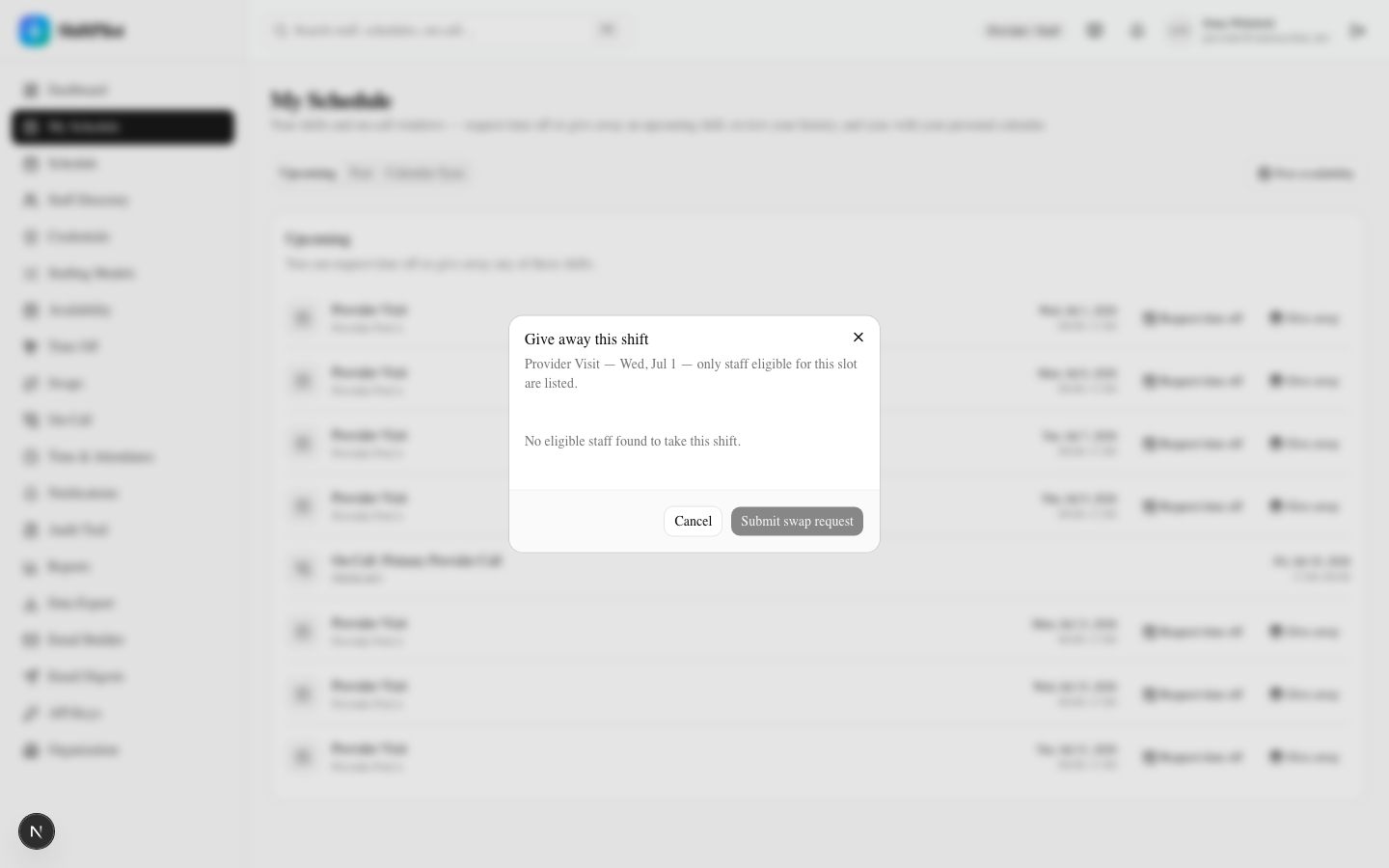
- Give away this shift — opens a dialog listing only staff who are actually eligible for that slot (checked live against the eligibility engine), so you can't accidentally offer a shift to someone who isn't qualified for it. Picking a name and submitting creates a one-way swap request awaiting approval.
A Post availability button in the tab bar opens a separate dialog for declaring recurring or one-off availability/unavailability windows — it's not tied to a specific shift row.
For the deep mechanics of eligibility-gated swaps, see Availability, Time Off & Swaps. For how on-call windows show up in this same list, see On-Call & Time Tracking.
Past
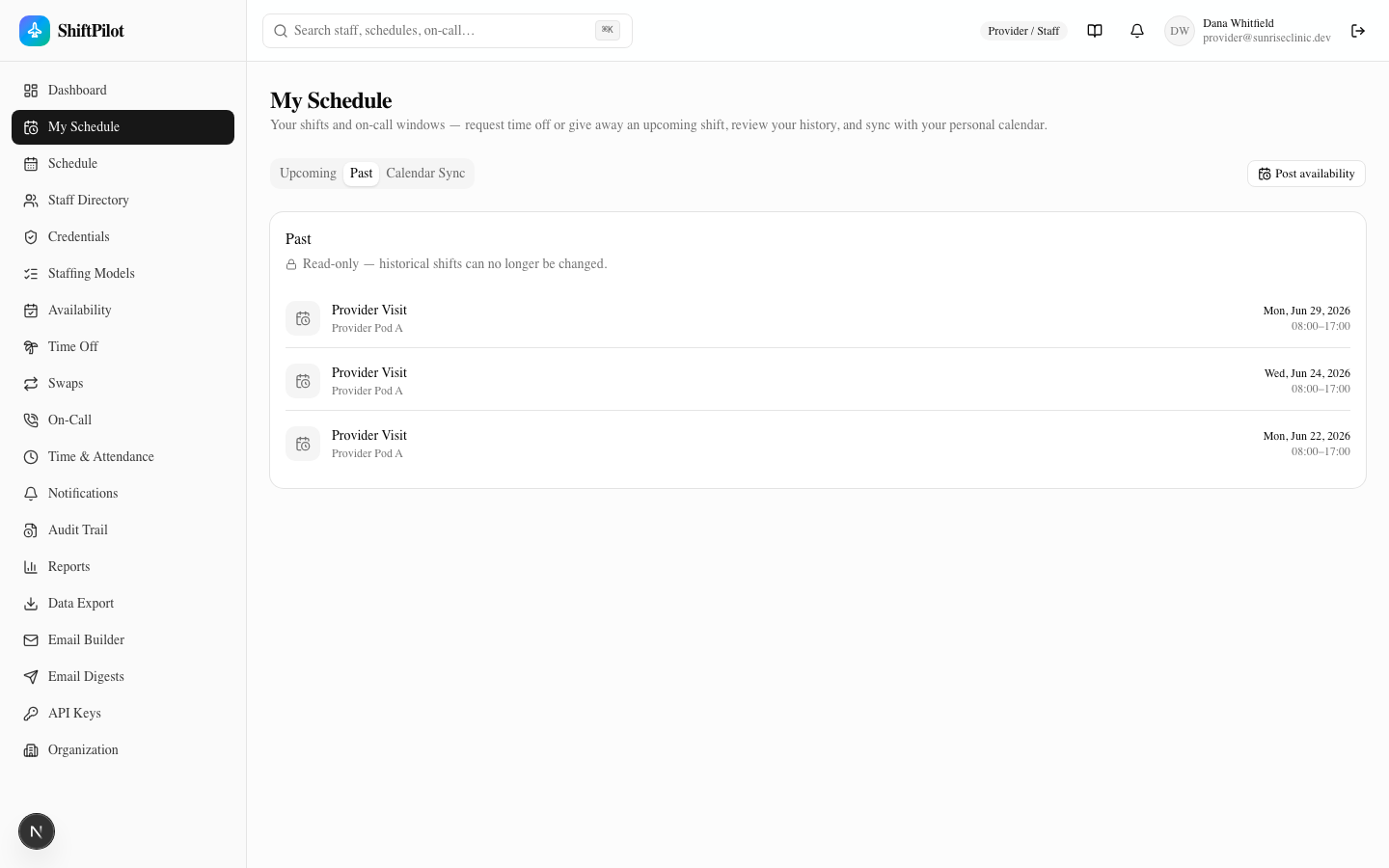
A history of completed shifts and on-call windows. This tab is explicitly read-only — no request-time-off or give-away actions appear on past rows, since historical shifts can no longer be changed. It exists purely for your own record-keeping.
Calendar Sync
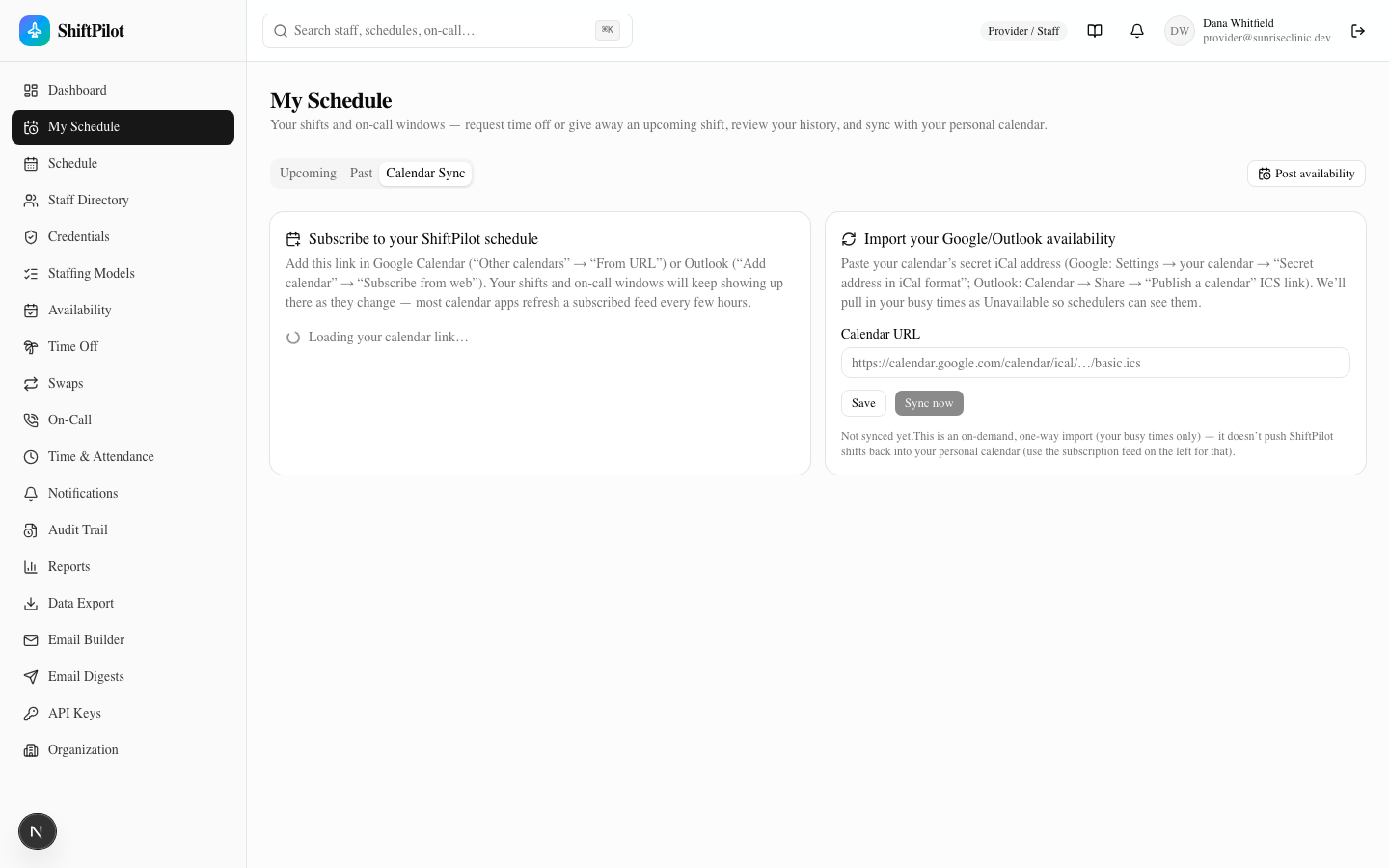
Two independent, one-directional integrations live side by side:
- Subscribe to your ShiftPilot schedule (outbound) — a personal, secret ICS feed URL you add to Google Calendar ("Other calendars" → "From URL") or Outlook ("Add calendar" → "Subscribe from web"). Once subscribed, your shifts and on-call windows keep appearing there as they change — most calendar apps refresh a subscribed feed every few hours on their own schedule, not instantly. A Regenerate link action invalidates the old URL (useful if it ever leaks) and requires re-subscribing wherever it was added.
- Import your Google/Outlook availability (inbound) — paste your calendar's secret iCal address and either save it for later or Sync now immediately. This is an on-demand, one-way pull of your busy times into ShiftPilot as Unavailable blocks, so schedulers can see your personal conflicts. It does not push ShiftPilot shifts anywhere — that's what the subscription feed on the left is for.
Full mechanics of the calendar export/import pipeline (ICS format, sync cadence, API details) are covered in Email, Calendar & API.
The two actions, up close
Global search (⌘K)
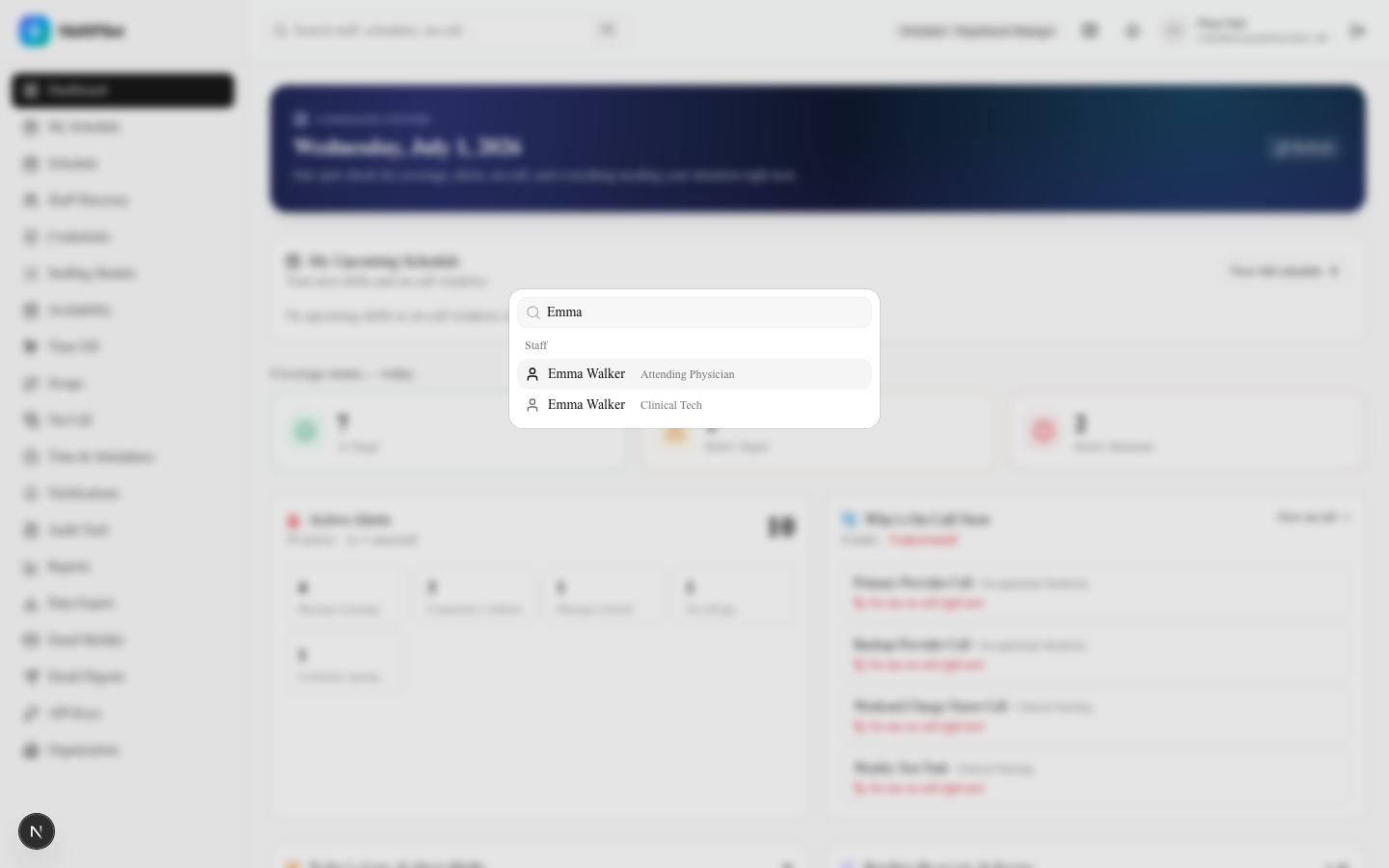
The search box in the header — press ⌘K (or Ctrl+K on Windows/Linux) anywhere in the app, or click the box directly — opens a command palette that searches three things at once as you type (after a short debounce, starting at 2 characters):
- Staff — matched by name, with their role shown as a subtitle.
- On-Call Schedules — on-call tasks/rotations matching the query.
- Stations — physical or logical stations matching the query.
Selecting a result navigates straight to it. Note that seed/demo data can include duplicate names across different staff records (e.g., more than one "Emma" with different roles) — the subtitle next to each result is what disambiguates them, not the name alone.
Where this fits
- Coverage numbers on this dashboard come straight from the coverage engine — see Scheduling Grid & Coverage for how they're built.
- Credential expirations feed the same eligibility checks used everywhere staff get assigned — see Staff, Credentials & Organization.
- Time-off and swap requests started from My Schedule are approved elsewhere — see Availability, Time Off & Swaps.
- On-call tasks and windows shown here are built and published separately — see On-Call & Time Tracking.
Rest badges & shift handoffs
On My Schedule, each upcoming shift shows how much rest you get since your previous shift — an "Xh rest" badge that turns amber when it's short (under 11h) and red when it's critical (under 8h), so back-to-back shifts and quick turnarounds are obvious at a glance. It handles overnight shifts and is informational only (it never blocks scheduling).
Every shift also has a Handoff note thread: leave a note for the next person on that assignment (or read theirs). The assigned staff member and schedule editors at that station can add notes; everything is timestamped and attributed.
Mobile
ShiftPilot is fully responsive — the navigation collapses to a drawer, tables and the scheduling grid scroll horizontally with a pinned first column, and dialogs fill the screen. On a phone or tablet you manage everything; on the schedule, tap any cell to assign from the suggested-fills list (drag-and-drop is the desktop path). ShiftPilot is also an installable PWA — "Add to Home Screen" gives it an app icon and a standalone window.