Availability, Time Off & Swaps
This page covers everything staff use to manage their own schedule: posting availability (including recurring patterns), requesting time off, and giving away or trading shifts. All three flows share the same shape — a self-service action by the staff member (or a scheduler acting on their behalf), followed by a change that's either informational (availability) or gated behind an approval (time off, swaps) — and all three are fully audited.
Availability (/availability)
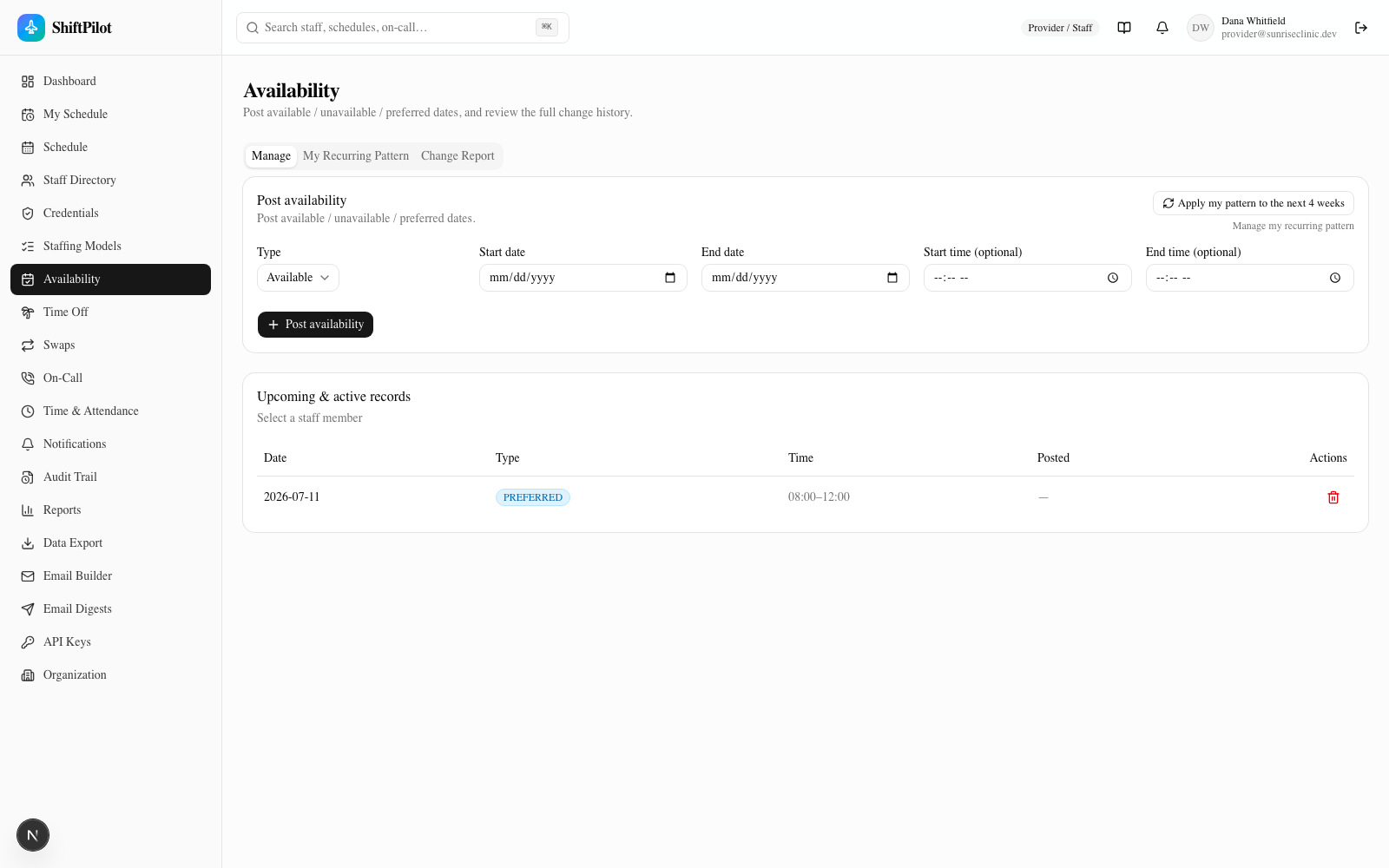
The Manage tab is where availability actually gets posted. Pick a type — Available, Preferred, or Unavailable — a start date (and optionally an end date for a range), and optional start/end times for a partial day. Scheduling uses this as one input into who's eligible to fill an open shift; unavailable staff are de-prioritized or hidden from fill suggestions. Anyone with permission to act on behalf of others (schedulers, etc.) gets a staff-member picker at the top of the form; regular staff only ever see their own.
Every posted record shows up in the Upcoming & active records table below the form, along with who posted it. Removing a record doesn't delete it — see Nothing is silently overwritten below.
Recurring patterns — set your usual week once
Re-entering "I'm off every Saturday" every single week doesn't scale, so ShiftPilot lets each staff member save a recurring pattern: a per-day-of-week default (type + optional time window) that the rest of the availability flow builds on.
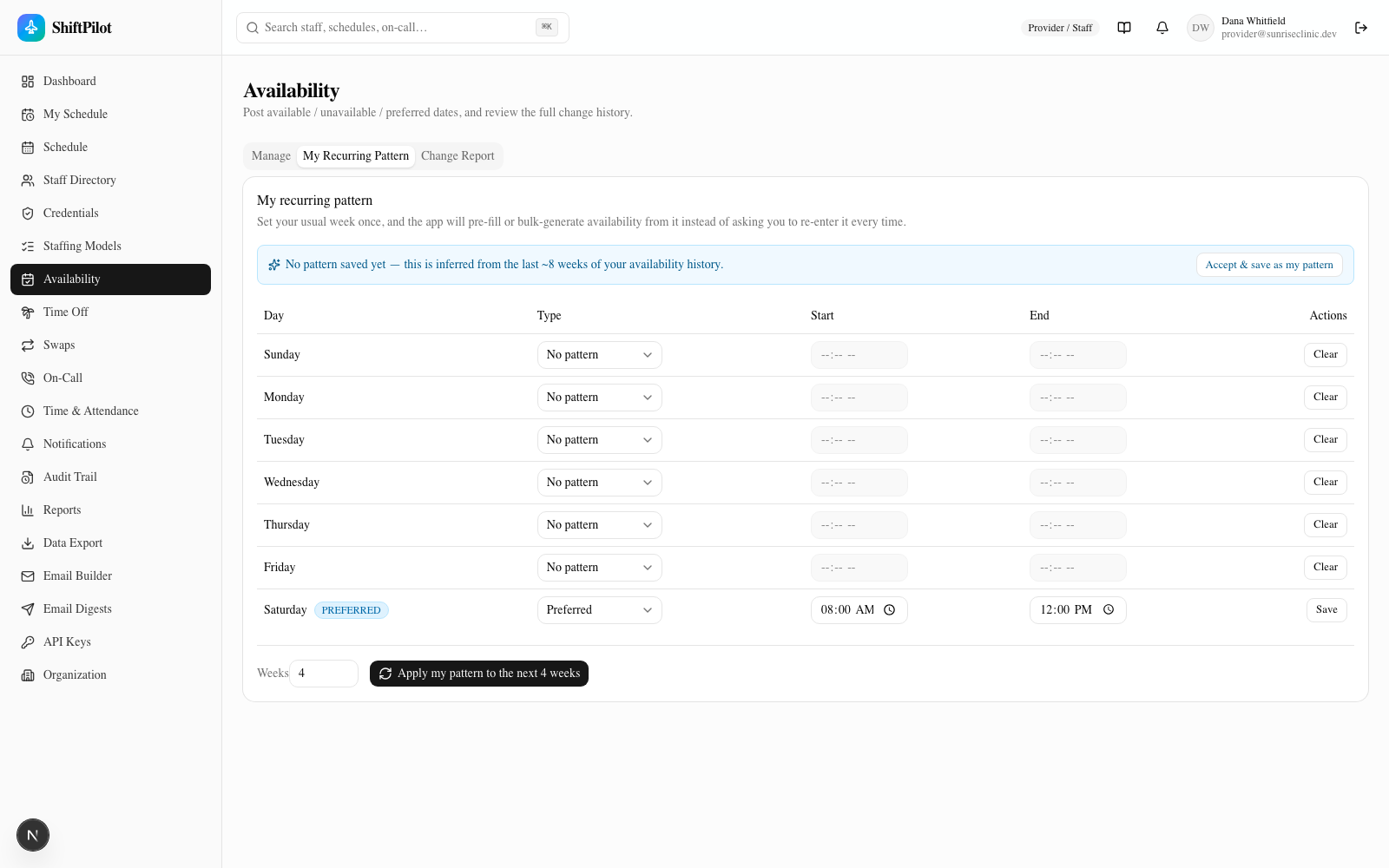
The My Recurring Pattern tab is a seven-row editor, one row per day of the week. Set a type and optional time window on any day and hit Save; set it back to "No pattern" and hit Clear to remove it.
If a staff member hasn't explicitly saved a pattern yet, this tab doesn't come up empty — the system looks at their last ~8 weeks of availability history and infers a suggested pattern from whatever's been consistent, shown with an "inferred" banner and an Accept & save as my pattern shortcut that persists it in one click. That's what the screenshot above shows: no pattern has been saved, but the system has noticed a consistent Saturday PREFERRED window and is suggesting it.
Once a pattern exists (saved or accepted), two things use it:
- Apply my pattern to the next N weeks — a bulk action (available both on this tab and as a shortcut button on the Manage tab) that walks forward from today and creates availability records matching the pattern for every day of that type, for however many weeks you specify (1–12). Days that already have an explicit availability record posted are left alone — you'll see how many days were created vs. skipped in the confirmation toast.
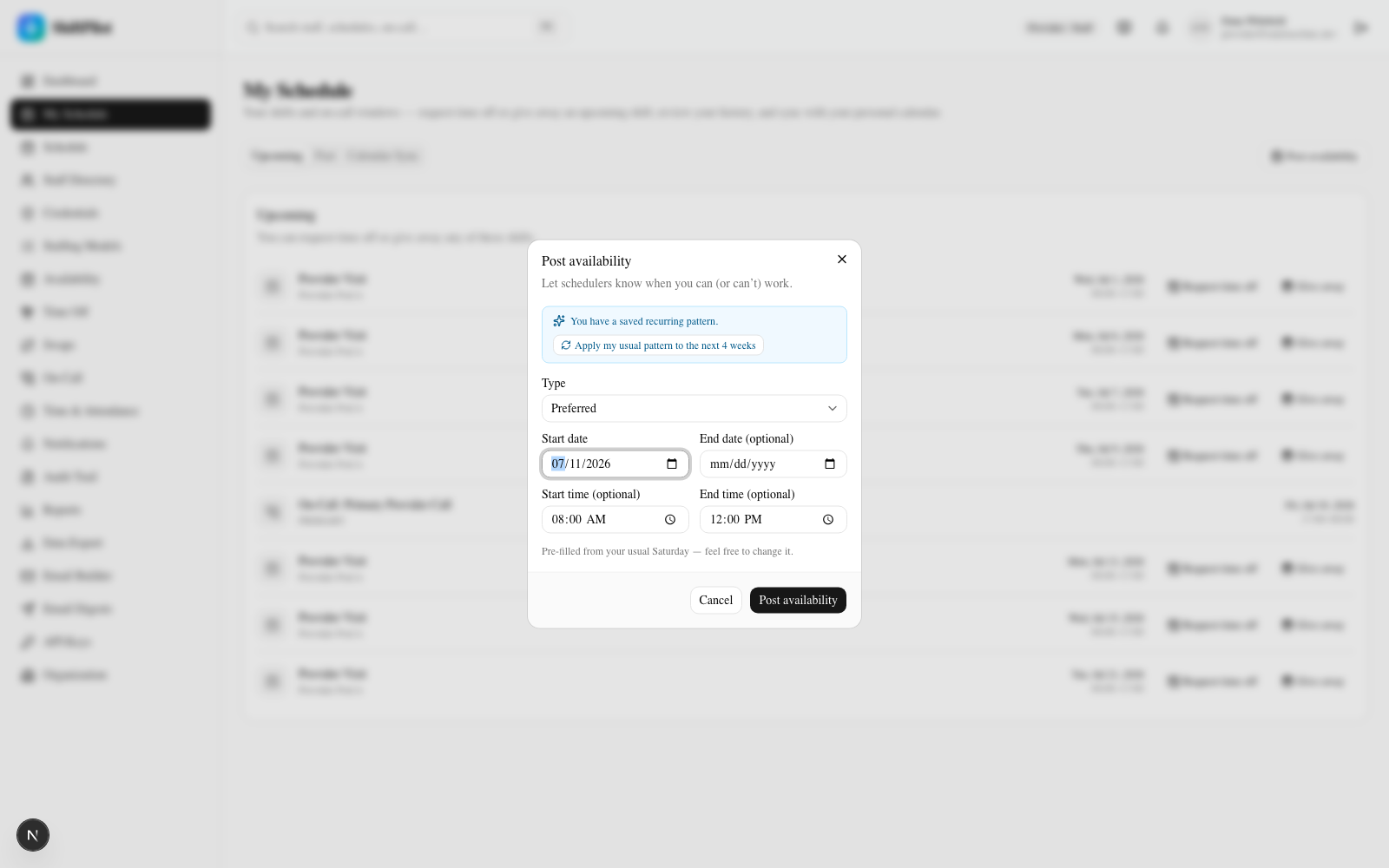
- Pre-fill on post. The "Post availability" dialog (reachable from My Schedule as well as from this page) checks the pattern for whatever date you pick and pre-fills the type and time fields from it, with a note like "Pre-filled from your usual Saturday — feel free to change it." The moment you hand-edit any field, the pre-fill stops overwriting your changes for that entry.
Nothing is silently overwritten
Availability records are never mutated or hard-deleted in place. Removing a record marks it removed
(removedAt is set, the actor is recorded) rather than deleting the row — so the history stays intact. Every add
and every remove is written as its own event, and both are queryable on the Change Report tab:
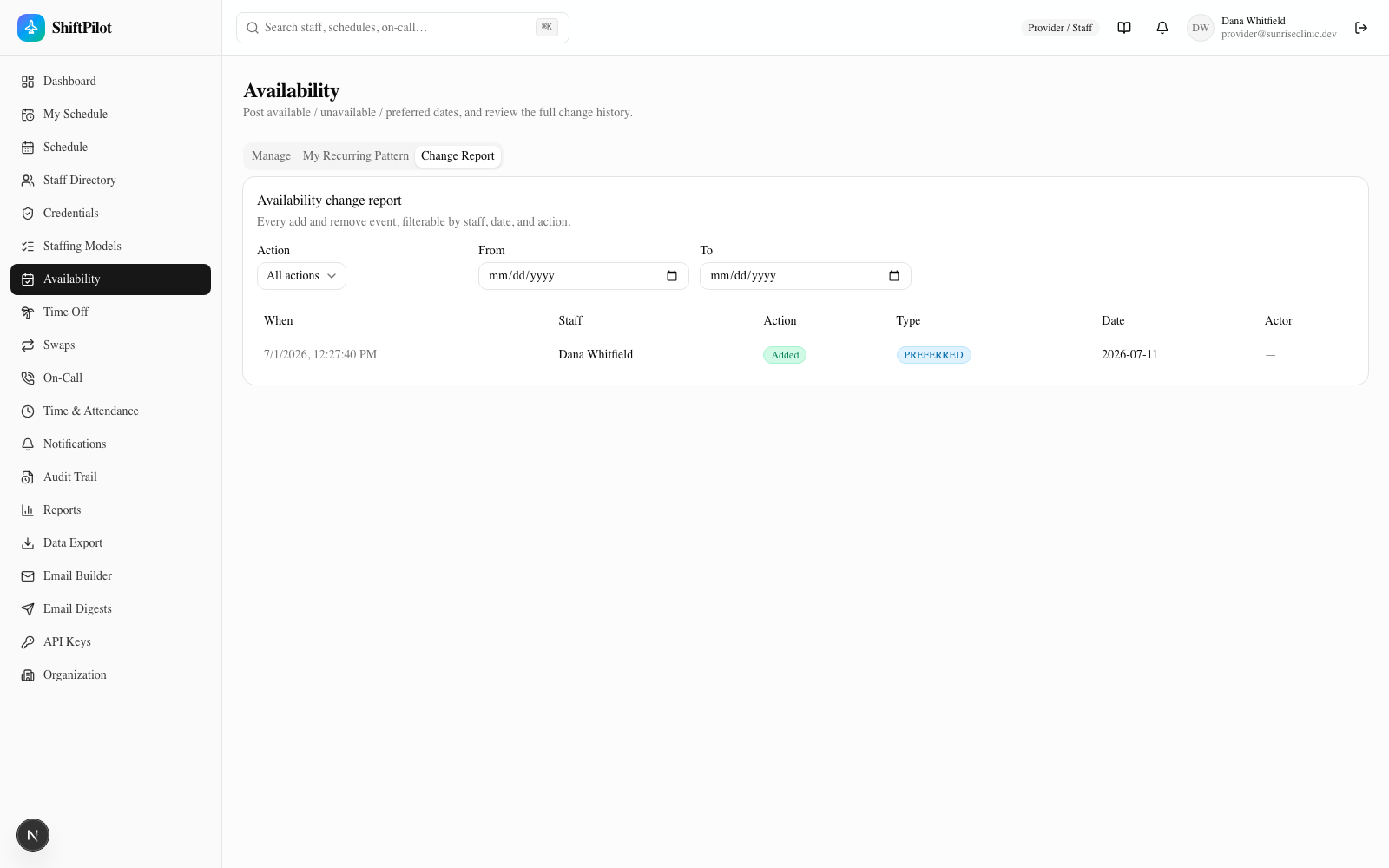
Filter by staff, action (added/removed), and date range. This is the audit trail for availability specifically — useful when someone disputes "I never marked myself unavailable that week," since the report shows exactly who posted or removed what, and when.
Time-off requests (/time-off)
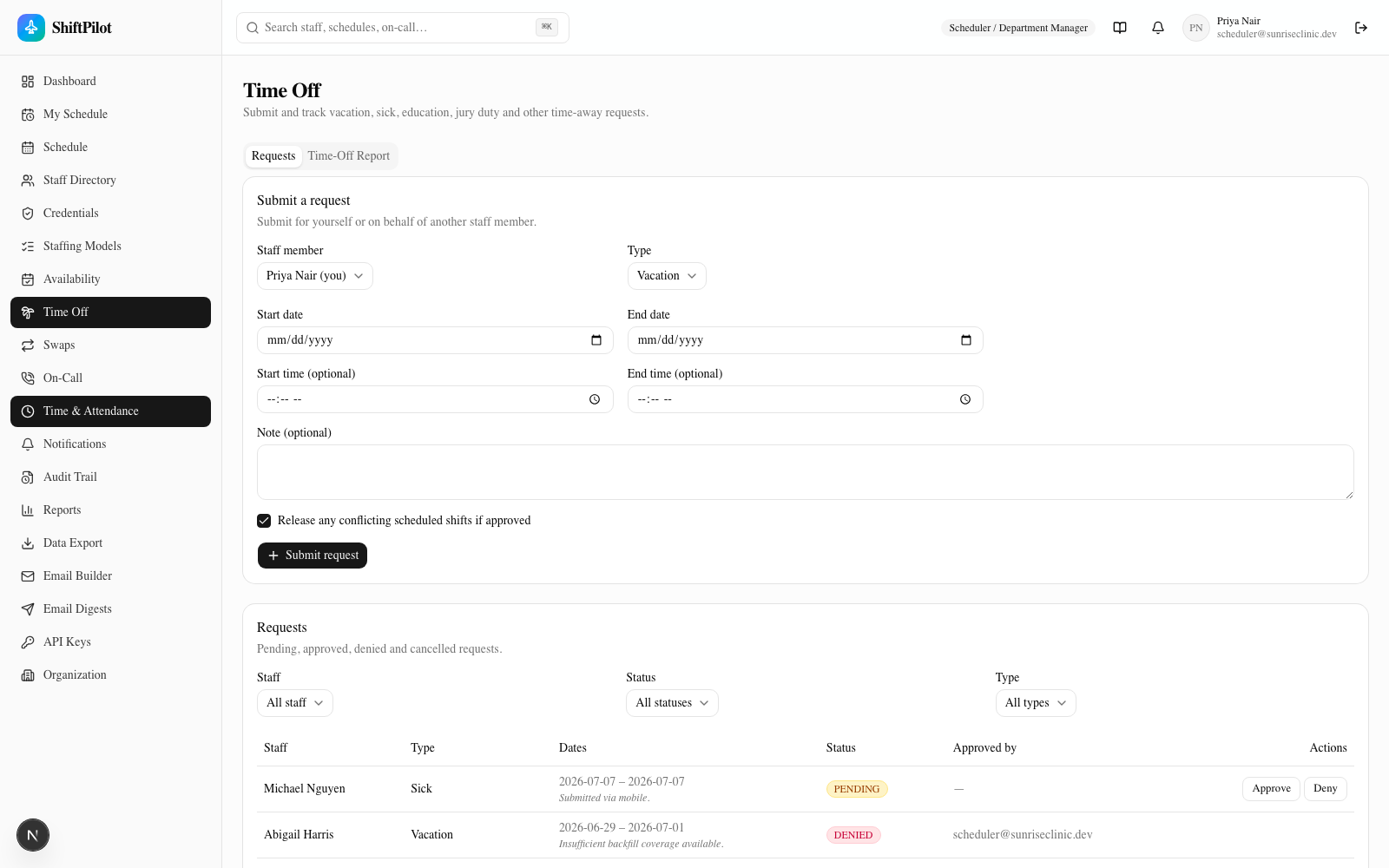
Submitting a request takes a type (Vacation, Sick, Education/CME, Jury Duty, Other — configurable labels for coverage/reporting, not payroll categories), a date range, optional start/end times for a partial day, and an optional note. Staff submit for themselves; schedulers can submit on behalf of anyone. The Release any conflicting scheduled shifts if approved checkbox (on by default) is the important one — see below.
Workflow: every request starts PENDING. A scheduler reviews it and either Approves or Denies it.
- Approve with release checked — any shifts already scheduled inside the request's date range are
automatically released back to open, becoming coverage gaps that surface in the shortage banner just like any
other gap, rather than being left behind as a ghost assignment pointing at someone who isn't actually coming
in. The approval confirmation tells you how many shifts were released.
- Whether release happens at all is controlled per-request by the checkbox — some clinics may want to review the conflicting shifts manually before opening them up.
- Cancel vs. withdraw — a pending request can be cancelled by the requester themselves. An approved request can be withdrawn by a scheduler (with the expectation that any shifts that were released may need rescheduling). Denied and cancelled requests stay visible in the list for history; they don't disappear.
The screenshot above is empty for this particular account, but the seed data has weeks of mixed-status requests across the clinic — visible to anyone with approval rights, with Approve/Deny actions right in the row:
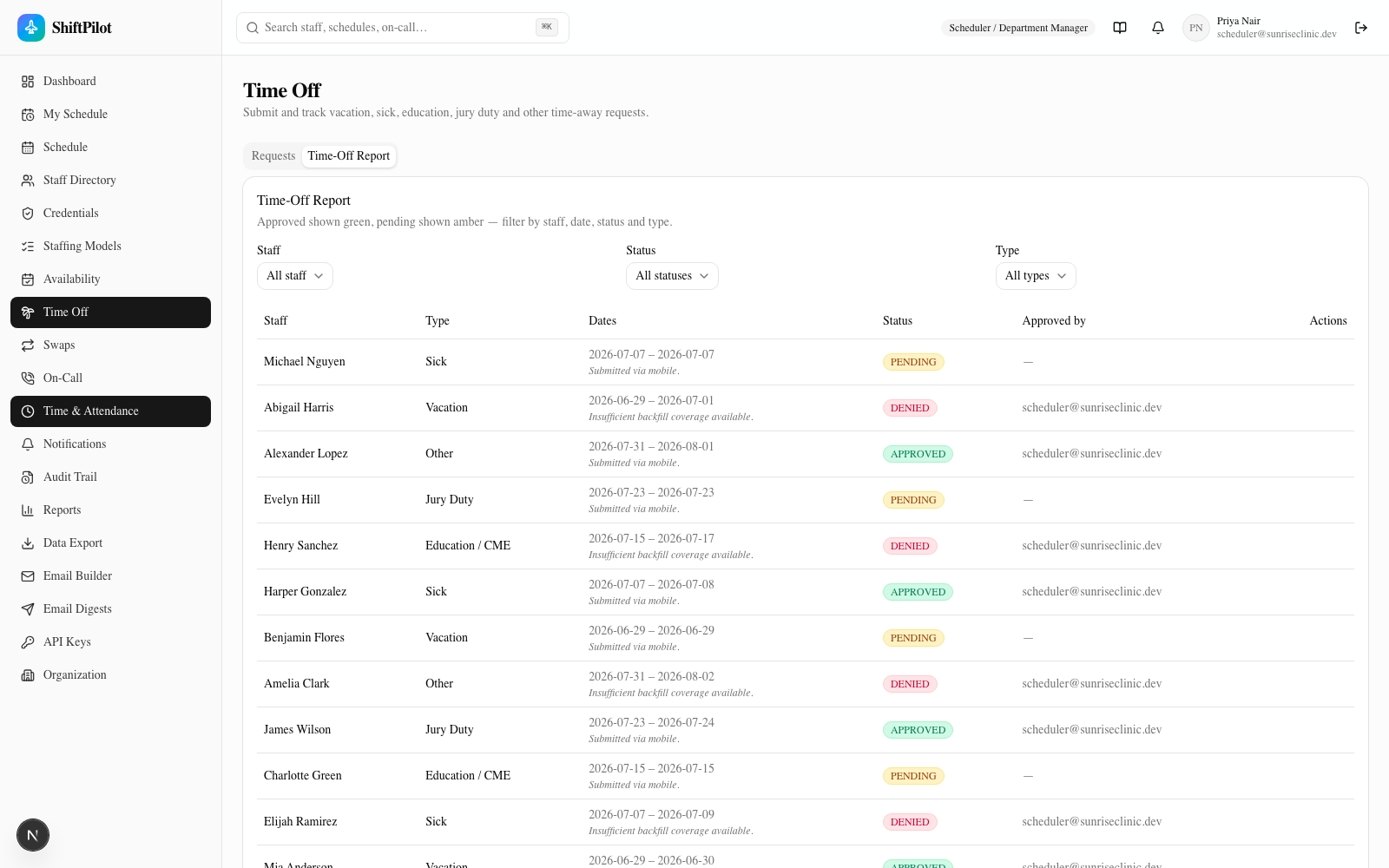
The Time-Off Report tab is the same underlying data at Station/Department/Facility scope — approved shown green, pending shown amber, denied shown red — so a scheduler can gauge how many pending requests they can realistically approve given available backfill capacity before they start clicking.
Shift swaps (/swaps)
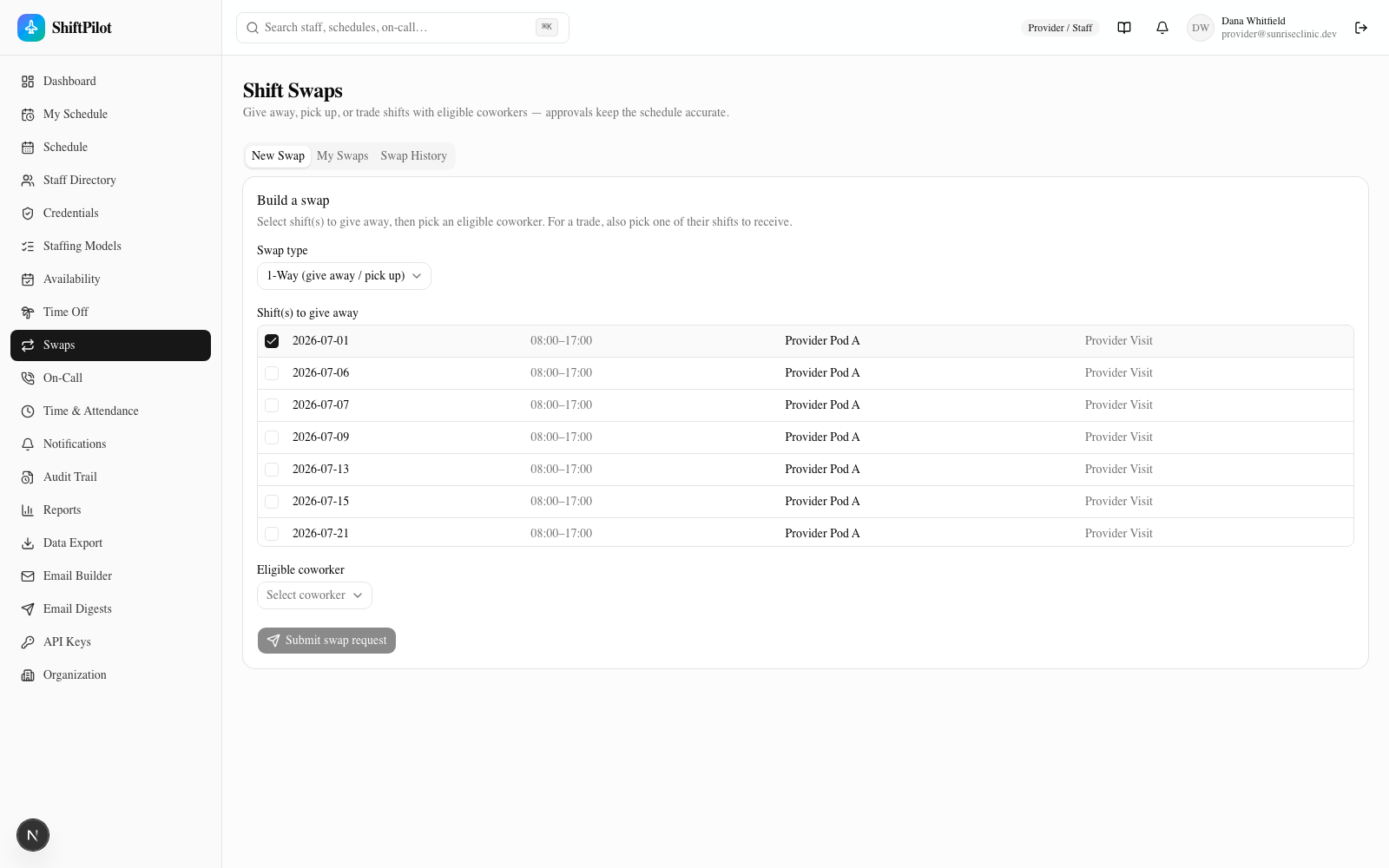
Swaps follow a cart pattern: pick the shift(s) you're giving away, then pick a target from the coworkers the system offers you, and submit. Two swap types:
- 1-Way — give away (or pick up) one or more assignments. You can select multiple shifts for a single target in one request (e.g., handing off a whole week).
- 2-Way — a direct trade: you give one of your shifts and receive one of the other person's in return. After picking your shift and a target, a second picker shows their upcoming shifts so you can choose what you get back.
Only eligible staff are ever offered
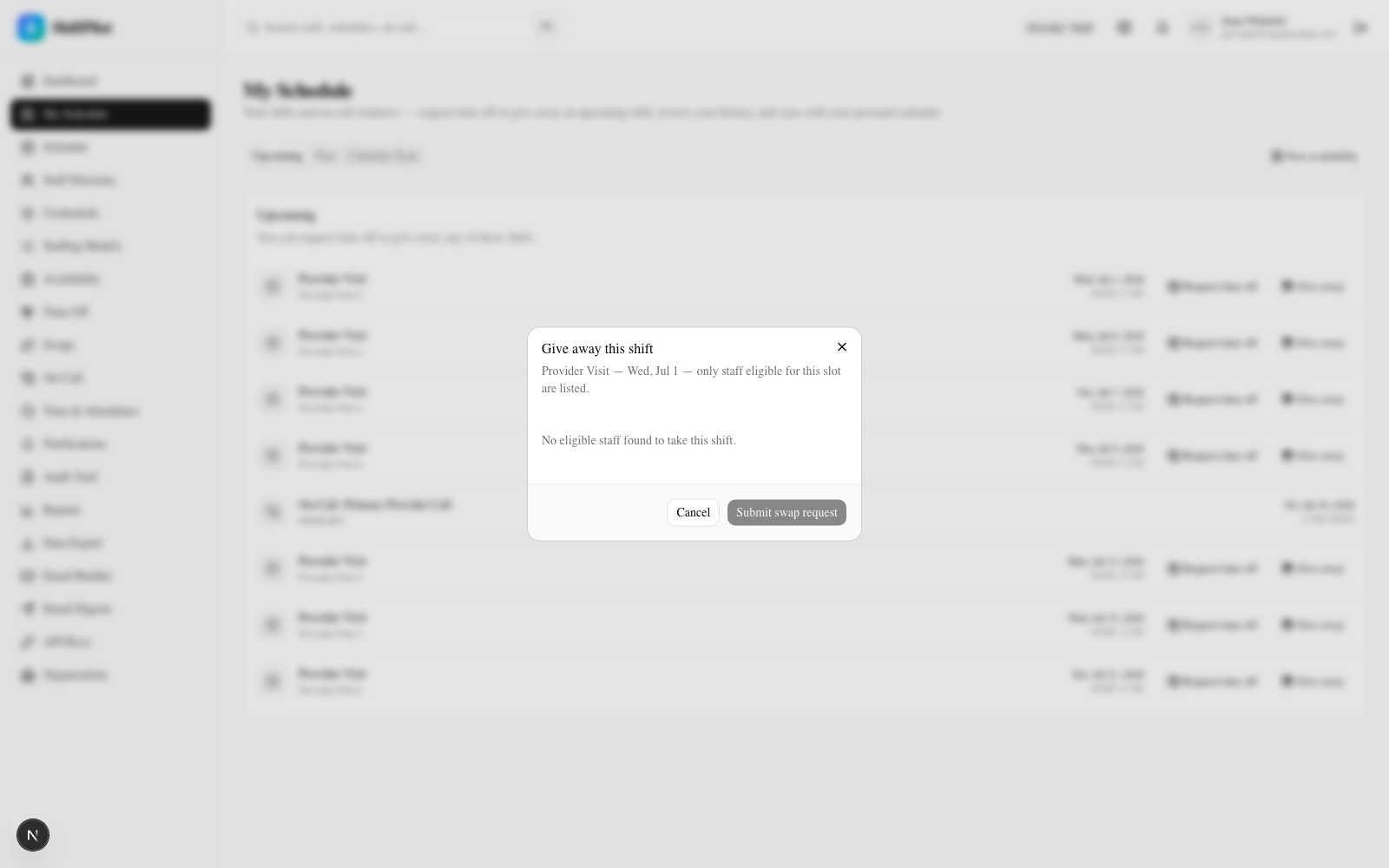
This is the detail that matters most: the candidate list you see when picking a target isn't just "everyone on the team" — it's built from the same eligibility engine used everywhere else in the product (see Scheduling Grid & Coverage). A staff member only shows up as a swap target if they'd actually be a valid assignment for that role/station/date — active matching competencies, correct role type, qualified location. That means a swap can't accidentally create an unqualified assignment; the eligibility check happens before the swap is even offered, not after someone approves it.
Two more gates sit on top of that eligibility check:
- The
canSwapper-staff toggle — some staff (typically Float/PRN) are configured not to self-swap at all, to avoid coverage/eligibility churn. If the initiator'scanSwapis off, the builder shows a message instead of the form. - Coverage re-evaluation on approval — even after an eligible target is picked, approving the swap re-checks coverage so a swap can't quietly create a hidden shortage; anything that would, is flagged.
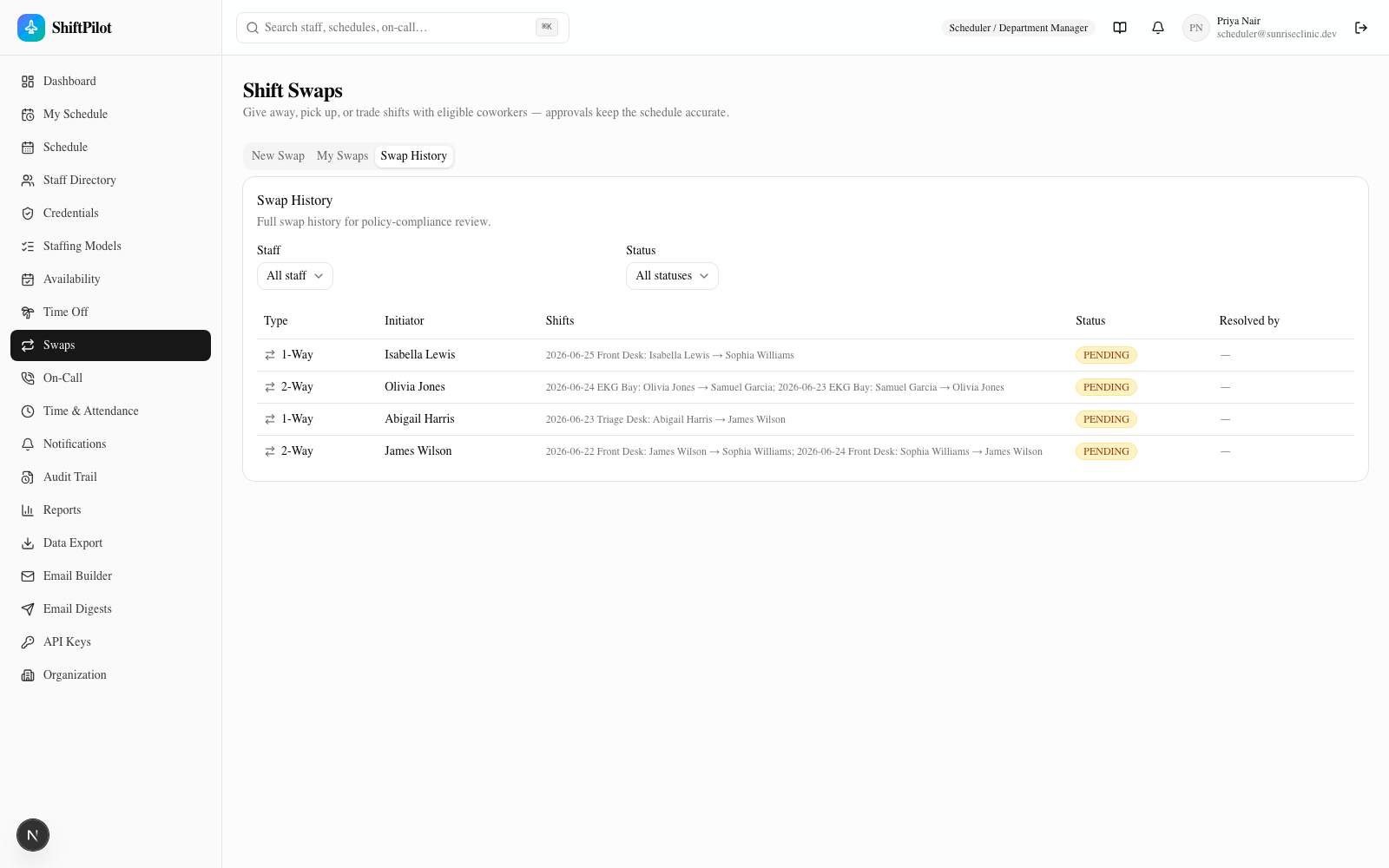
Submitted swaps go to My Swaps, where the counterparty (and/or a scheduler, per policy) approves or denies it; the initiator can cancel a still-pending swap. Swap History is the full record for policy-compliance review, filterable by staff and status — useful for seeing swap volume/patterns across the clinic:
Quick actions from My Schedule
My Schedule has Request time off and Give away shortcuts right on each upcoming shift row, plus a Post availability button — they're not separate mechanics, just entry points into the exact same time-off and swap flows described above, pre-filled with the specific shift's date (and, for swaps, its eligible-candidate list) so you don't have to go find the shift again on the dedicated pages.
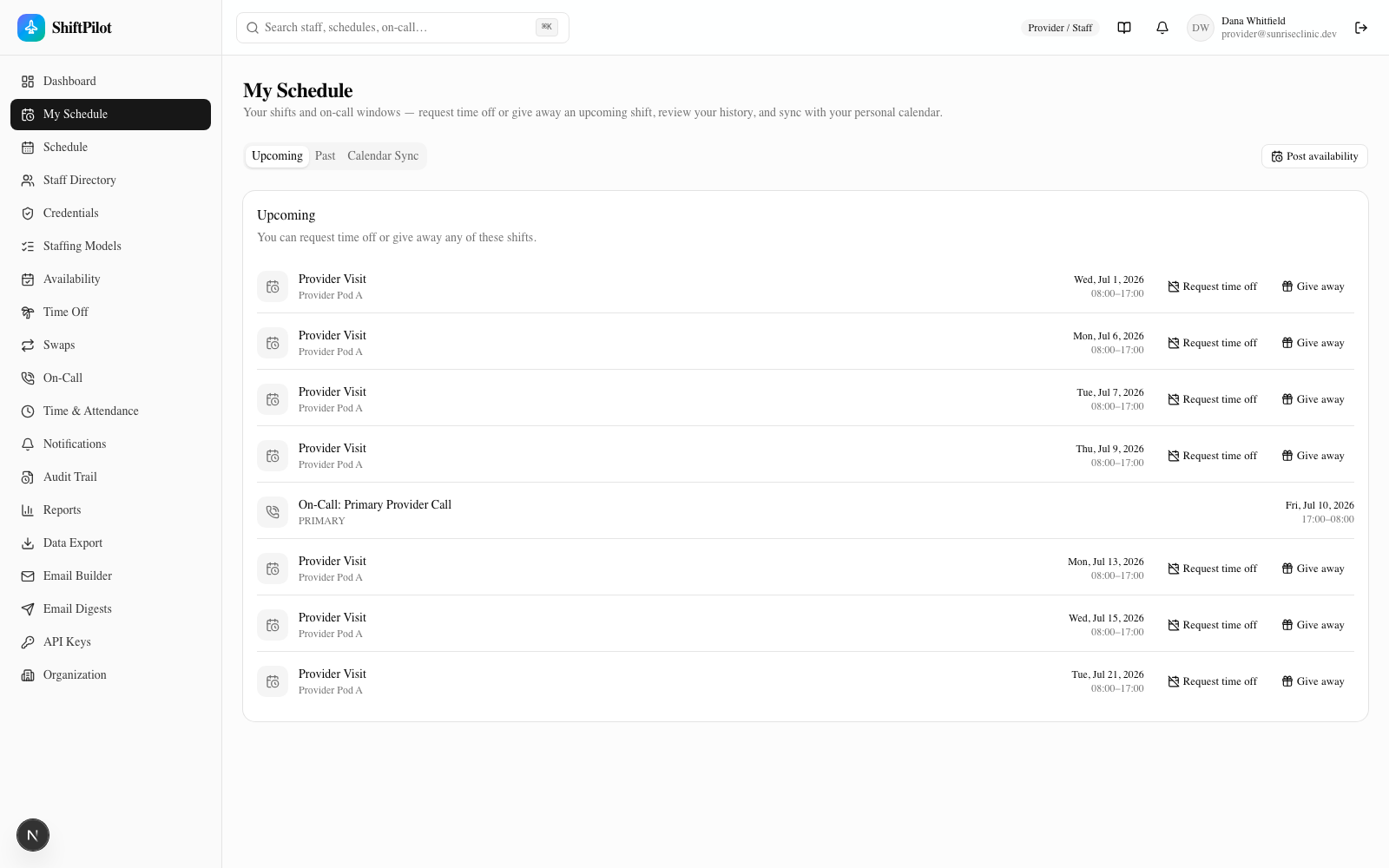
Clicking Give away opens the same eligible-candidates picker used by the swap builder — scoped to just that one shift:
See Dashboard & My Schedule for the rest of that page (past shifts, calendar sync, on-call windows).
Claiming open shifts (self-service)
Staff don't have to wait to be assigned. On My Schedule, the "Open shifts you can claim" card lists the OPEN shifts in the next 30 days that the person is eligible for — at their facility or any station they're qualified to float into. One click claims the shift: it's added straight to their schedule, coverage is recomputed, and their supervisor is notified. The claim is refused if they're not eligible or if it would overlap a shift they already have, so a self-claim is always a legal, conflict-free assignment. (The card is hidden when there's nothing to claim.)