On-Call & Time Tracking
On-call is a parallel scheduling domain — its own tasks, tiers, and contact/escalation flow — that reuses the
same staff, eligibility, and audit machinery as the main schedule. Time & Attendance is the operational record
of what actually happened against the schedule. This page covers both: /on-call (with sub-tabs Who's On
Call, Build & Rotate, Manage, and Reports) and /time (with sub-pages Clock In / Out,
Punch Edits, and Timecards).
Both modules are reached from the left sidebar (On-Call, Time & Attendance). The on-call tabs beyond Who's On Call and Reports — Build & Rotate and Manage — are only shown to roles that can edit the schedule (System/Enterprise/Facility Admin, Scheduler, Charge/Lead, On-Call Coordinator); Provider/Staff and Auditor see a read-only view. Same story on the Time side: the Punch Edits tab only appears for those same edit-capable roles.
On-call
Who's On Call Now
This is the default view when you open /on-call, and it answers one question: who is covering this task
right now? Each card is one on-call task, showing its Primary (and Secondary/Tertiary, when assigned) coverage
tier, the covering provider's name, their shift window, and a one-click Contact action using their
preferred channel (mobile, pager, or secure message, in that priority order).
A task with nobody covering it is never a quiet blank cell — it's an unmistakable red state. The whole card gets a destructive-red border, a "No one on call" badge in the header, and the Primary row itself is highlighted with a red background and the bold text "No one on call for this task." The gap counter at the top of the page ("N gaps") totals every task currently uncovered across the visible set.
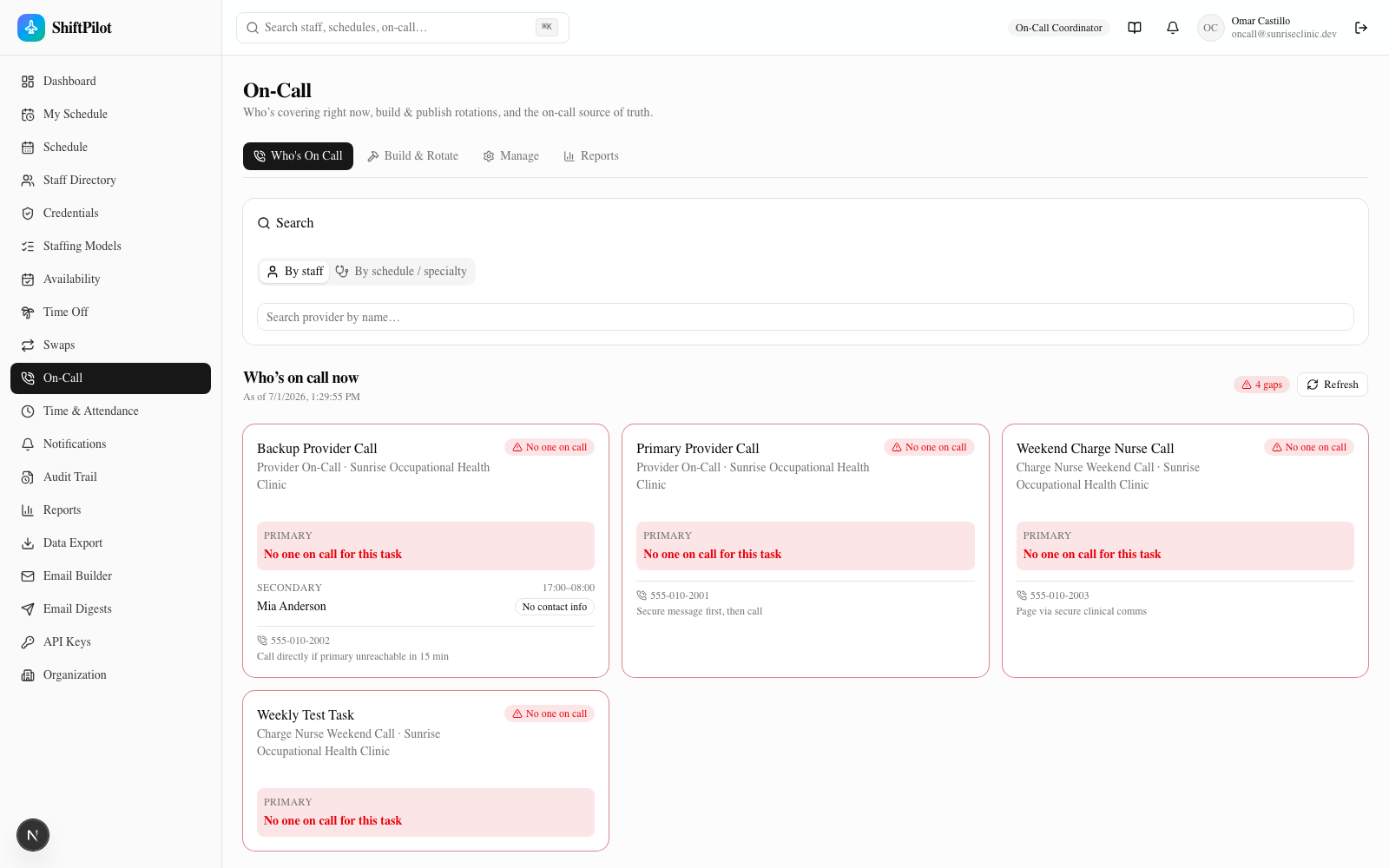
Search has two modes, switchable via the tabs at the top of the Search panel:
- By staff — type a provider's name, pick them from the results, and see their on-call assignments for the next 30 days, with an "Assigned now" badge on anything covering the current moment.
- By schedule / specialty — type a schedule name or specialty (e.g. "cardio") to find matching on-call schedules, each with a "Who's on now" shortcut that filters the page down to that schedule. Results are capped and can be cleared with the link shown once a filter is active.
Build & Rotate
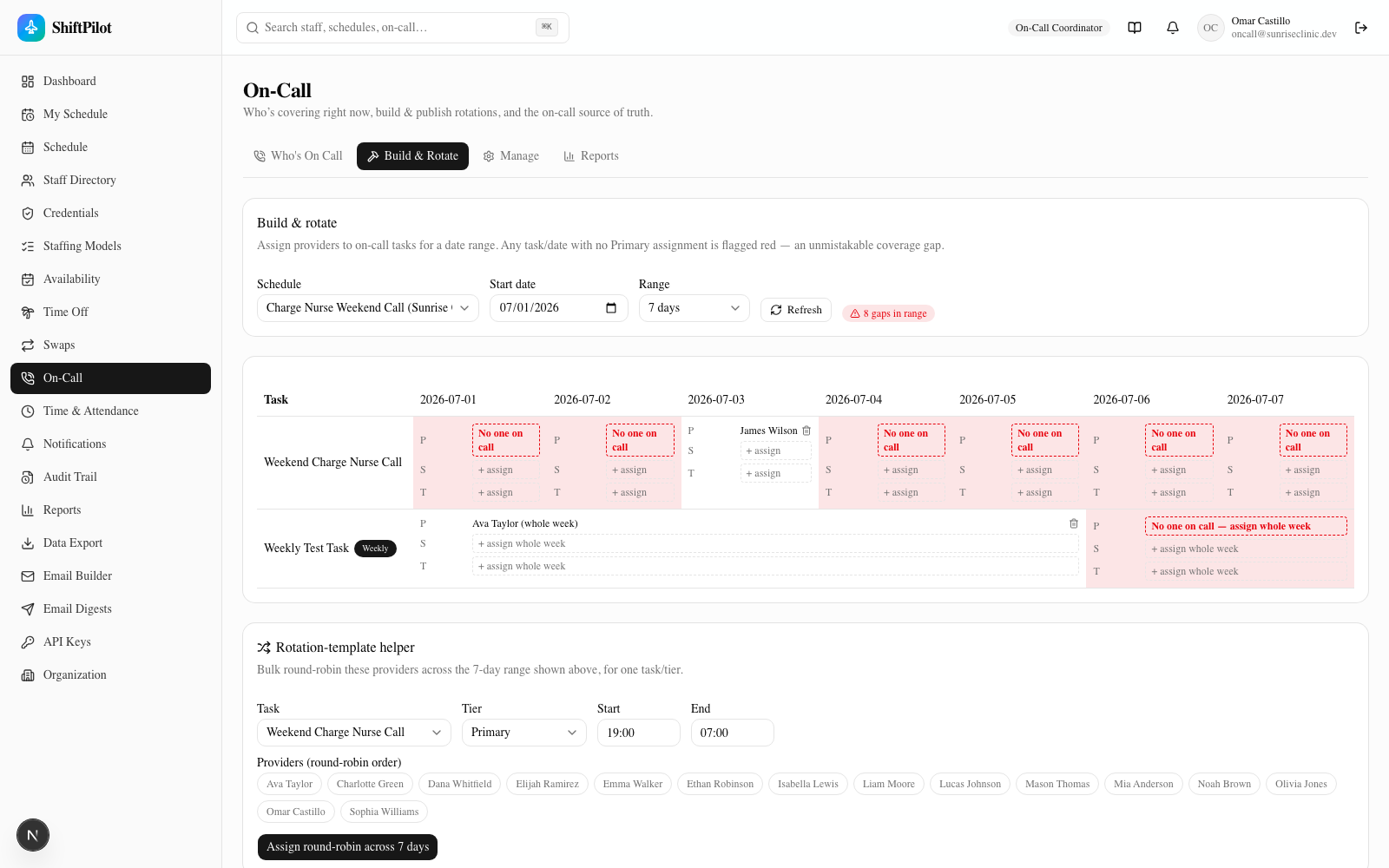
The Build & Rotate tab (edit roles only) is where providers actually get assigned to tasks. Pick a schedule, a start date, and a range (7/14/28 days), and you get a grid: one row per task, one column per date. Click any empty tier cell to open the assign dialog, which lists only staff who pass the on-call eligibility gate (competency/credential match plus specialty membership) for that schedule. Any task/date with no Primary assignment is flagged red — the same unmistakable-gap treatment as the Who's On Call view, just inline in the grid.
A rotation-template helper below the grid does bulk round-robin assignment: pick a task, a tier, a start/end time, and an ordered list of providers, and it distributes them across every date in the visible range in one action — useful for filling a 1-in-6 style weeknight rotation without clicking through each day.
Daily vs. weekly cadence. Every on-call task has a cadence, set on the Manage tab:
| Cadence | Behavior |
|---|---|
| Daily | The original model — a different provider can cover each date. The grid shows one cell per day. |
| Weekly | One provider covers the entire Monday–Sunday block. The grid collapses that week into a single spanning cell ("assign whole week"), and removing the assignment removes all 7 days at once. |
Internally, a weekly assignment is still 7 individual OnCallAssignment rows (one per date) — but they all
share a weekGroupId, which is what lets the UI treat and display them as one unit rather than 7 separate
assignments to manage individually. Assign a whole week from either the grid (click the weekly cell's "assign
whole week" prompt) or from the assign dialog, which in week mode shows the full Mon–Sun date range and assigns
every eligible date in one call.
Manage
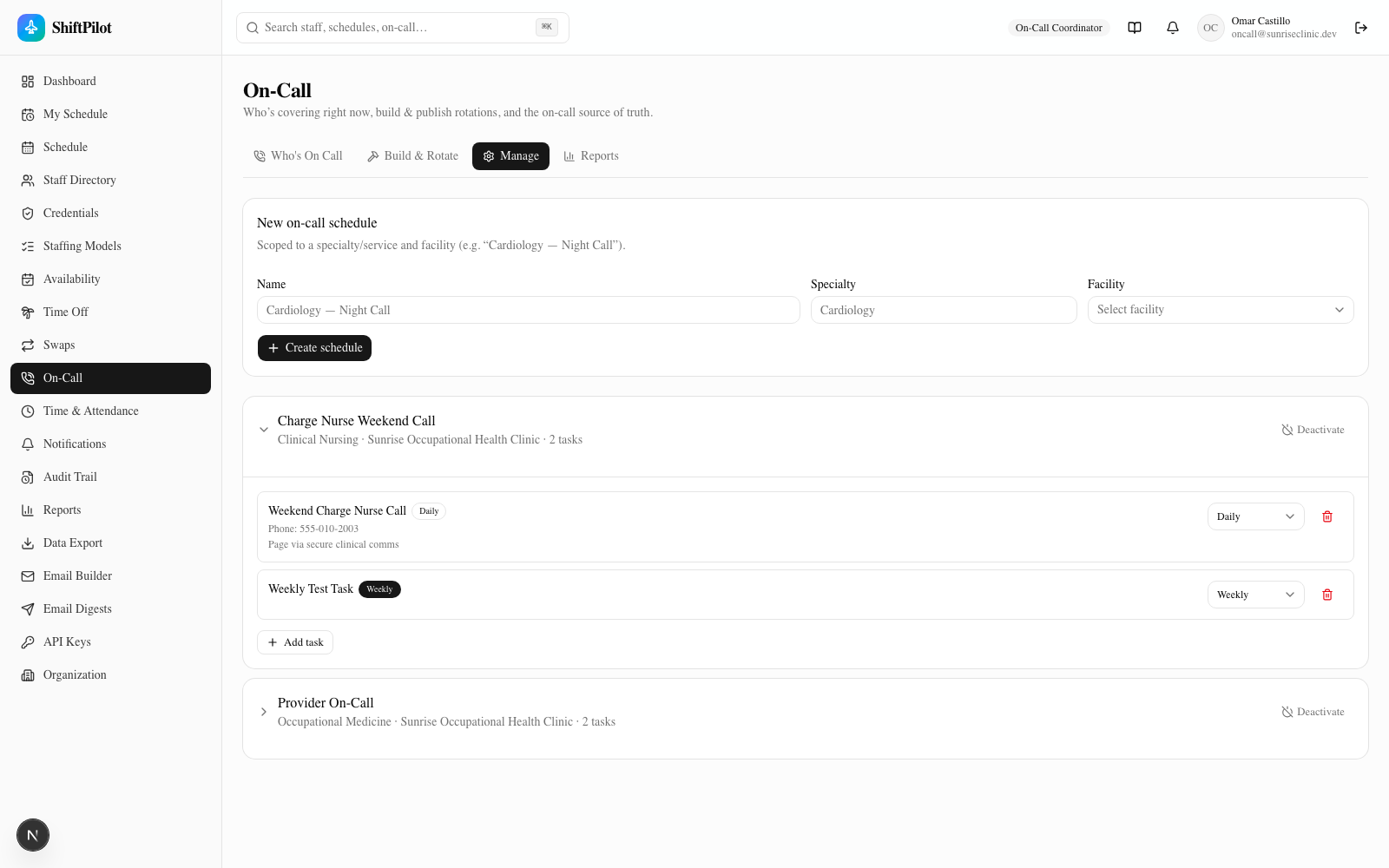
The Manage tab is where on-call schedules and tasks are defined:
- On-call schedule — name, specialty (free text, used for search — e.g. "Cardiology"), and facility. Think "Cardiology — Night Call" as one schedule that groups related tasks.
- On-call task — a coverage line within a schedule: name (e.g. "Cardio ED Assigned Call 7a–7a"), an optional static phone number, free-text contact instructions (e.g. "Page via switchboard, then call mobile if no response in 10 min"), optional schedule notes, and the cadence (Daily or Weekly).
Cadence can be changed after creation from the task list's inline selector — useful if a task originally built day-by-day should switch to a standing weekly assignment, or vice versa. Deleting a task also removes its assignments (confirmed before it happens). Schedules can be deactivated (not hard-deleted) once no longer needed; inactive schedules stay visible here, dimmed, for history.
Contact, dispatch, and escalation
From any covered task on the Who's On Call view, the Contact button opens a dialog pre-filled with a
message and the provider's preferred channel/recipient. There's no live paging/SMS integration in this
environment — sending is simulated — but every attempt is archived: because there's no dedicated dispatch-log
table in the schema, contact attempts are written to the shared audit trail (oncall.dispatch) with the
recipient, channel, and message preserved as the audit entry's after-value. That's also what backs the Reports
tab's dispatch archive.
Escalation works the same way. From a task with a Primary assignment, the Escalate button logs a manual escalation (Primary → Secondary, or Secondary → Tertiary) with a required reason — "Primary unreachable after repeated contact attempts" is the default, editable. This is explicitly a log entry, not a reassignment: it records that the on-call chain was walked, but does not move the shift to the next tier's provider. Automated, timing-based escalation (e.g. "escalate automatically if unacknowledged after 15 minutes") is out of scope for this build — everything here is manual, triggered by a person deciding Primary isn't responding.
Reports
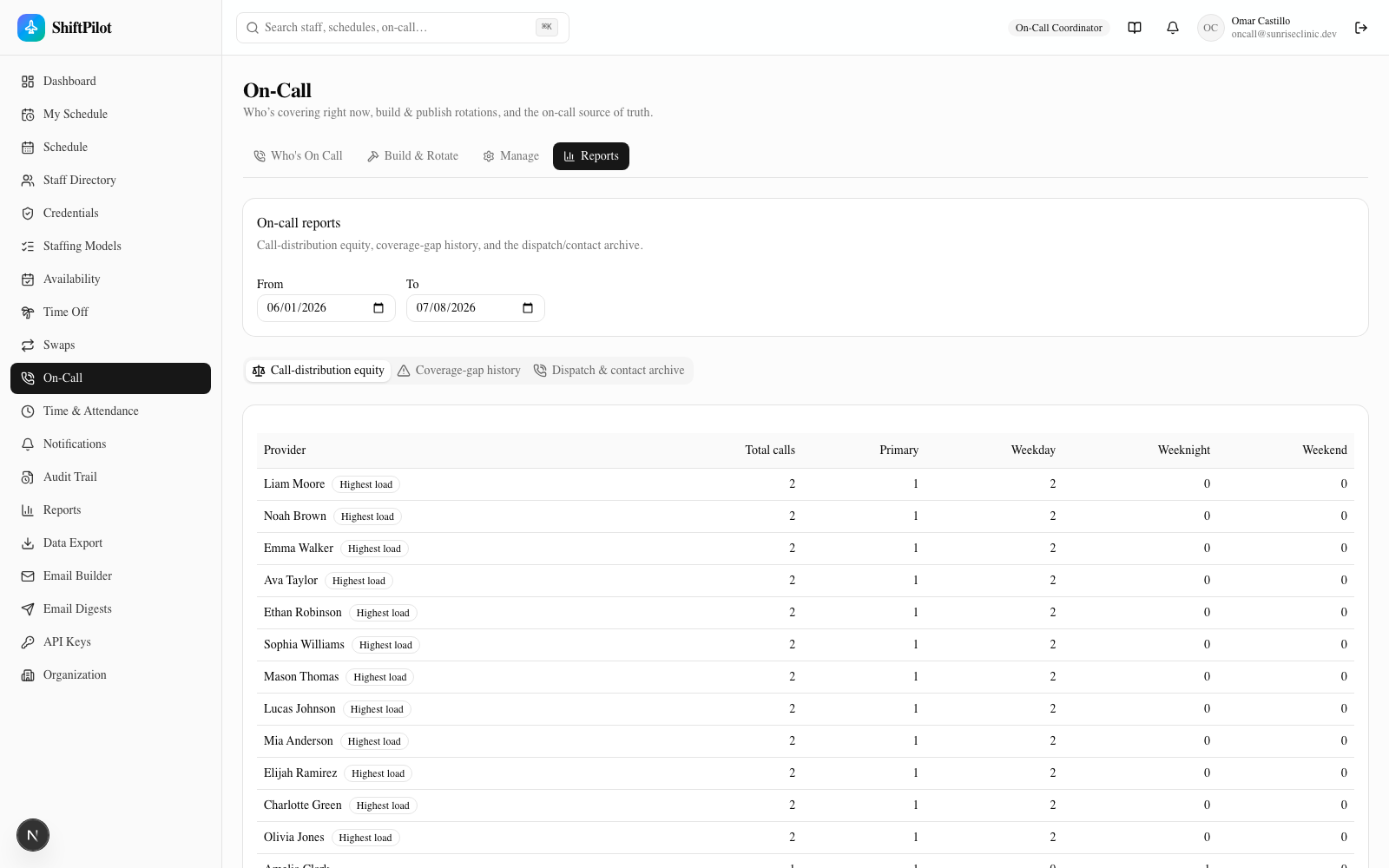
The Reports tab (/on-call/reports) has three views, filterable by date range:
- Call-distribution equity — total calls per provider over the range, broken down by Primary count and by weekday/weeknight/weekend load, with a "Highest load" badge flagging whoever's carrying the most. This is the fairness signal for catching an imbalanced rotation before it becomes a burnout problem.
- Coverage-gap history — every task/date in the range that had no Primary assignment, i.e. the historical record of the same red-gap condition Who's On Call shows in real time.
- Dispatch & contact archive — every Contact and Escalation action logged in the range, pulled from the audit trail, showing who acted, when, and the detail (who was contacted via which channel, or which tier-to-tier escalation happened and why).
Time & Attendance
Clock in / clock out
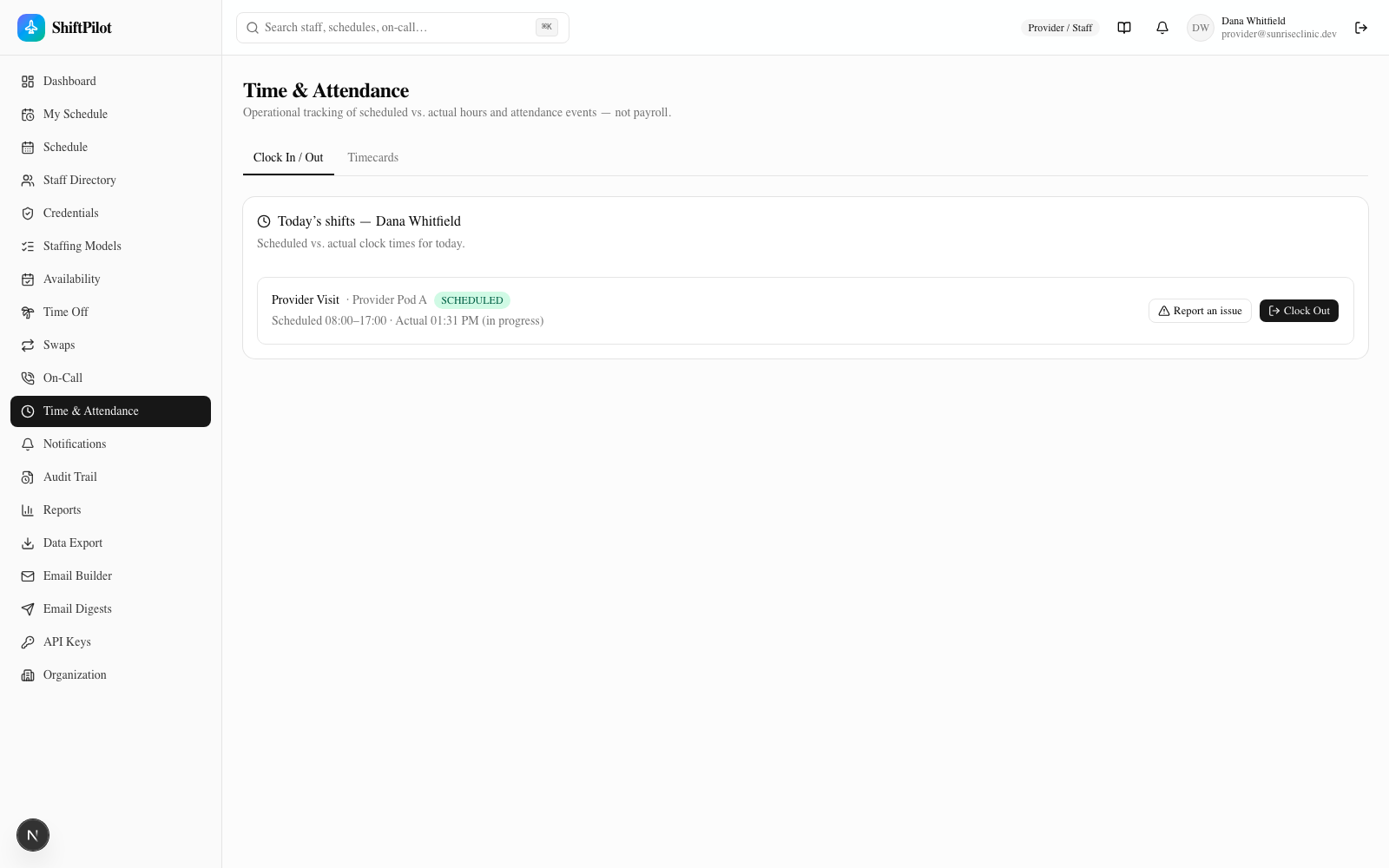
/time (Clock In / Out tab) shows today's scheduled assignment(s) for a staff member with a Clock In /
Clock Out button per shift, plus the scheduled vs. actual times once a punch exists. This is self-service by
default — a Provider/Staff account only sees and acts on their own shifts.
Anyone with schedule-edit rights (Scheduler, Charge/Lead, and the admin roles) additionally gets a "Clock in on behalf of staff" picker at the top of the page, letting them select any staff member and record a clock-in/out for them — useful for staff who forgot to clock in, or who don't have direct system access at the point of care.
The call-off flow
Every shift card also has a Report an issue action covering five attendance-event types: Late arrival,
Early release, Absence, No show, and Call-off. The first four just log a typed, reason-tagged
AttendanceEvent. Call-off is the one to understand well, because it does more than log an event:
- It records the attendance event (type
CALL_OFF, with your reason). - It reopens the shift as a coverage gap — the assignment's status is set to
OPEN(orHOTif you check "Promote reopened shift to HOT", marking it high-priority and eligible for immediate self-scheduling) rather than being deleted.
That second part is the important one: because the shift is reopened, not removed, the coverage engine picks it up as a real, trackable gap the same way any other uncovered shift is — it shows up in shortage counts, gap alerts, and (if promoted to HOT) the self-scheduling pool. Deleting the assignment instead would silently make the gap invisible to all of that. A reason is required for a call-off (the field is validated before submit); notes are optional additional detail.
Punch corrections
Punch Edits (/time/punches, admin/scheduler roles only) lists time punches across staff for a date range,
with scheduled vs. actual start/end and a variance badge per side (green within 5 minutes, amber within 30,
red beyond that). Every punch has an Edit action that opens a correction dialog for actual start/end —
and a reason is required (minimum 3 characters) before it can be saved. Every correction writes an audit
entry capturing the before and after values plus who made the change and why, satisfying the "audit and
validate time-punch changes" requirement — nothing about a punch can be silently adjusted.
Timecards
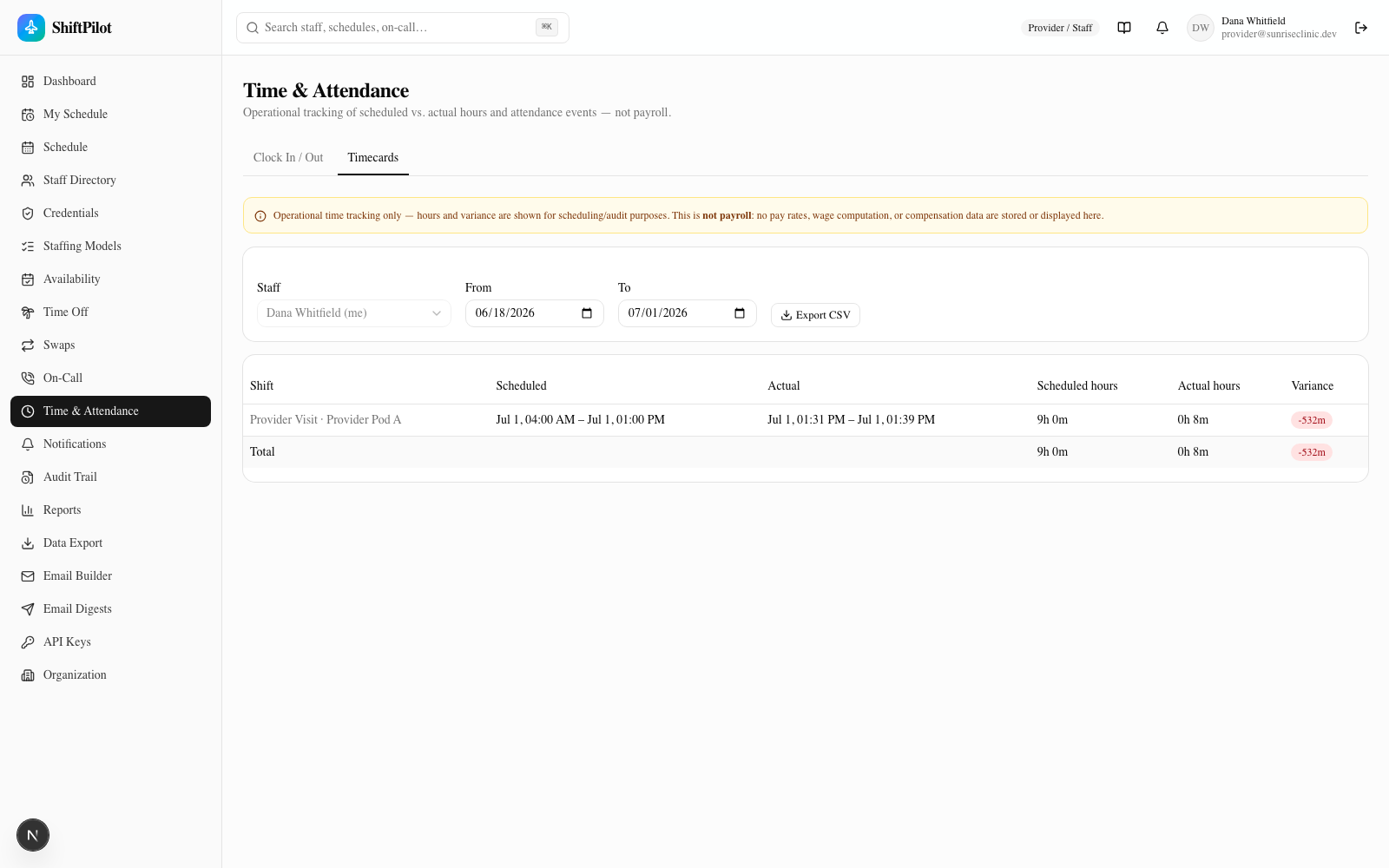
Timecards (/time/timecards) is the scheduled-vs-actual view per staff member and date range, with per-shift
and period-total hours plus a variance badge, and a CSV export. Staff see their own timecard by default;
schedulers/admins can pick any staff member.
The page carries an explicit callout that this is not payroll: hours and variance are shown purely for scheduling/operational and audit purposes — no pay rates, wage computation, or compensation data are stored or displayed anywhere in this module.
On-call windows also show up on a provider's My Schedule page and in their calendar export, so a provider doesn't need to check two different places to see their full commitment picture.