Scheduling Grid & Coverage
This is the scheduler's primary workspace: define the ideal staffing picture with a staffing model, build the
actual schedule against it on the grid, and watch the gap between the two on the coverage banner — live,
with no refresh. Everything here is enforced by the same two engines introduced in
Getting Started: the eligibility engine (src/lib/eligibility.ts) and the coverage
engine (src/lib/coverage.ts).
Staffing models: defining "the ideal"
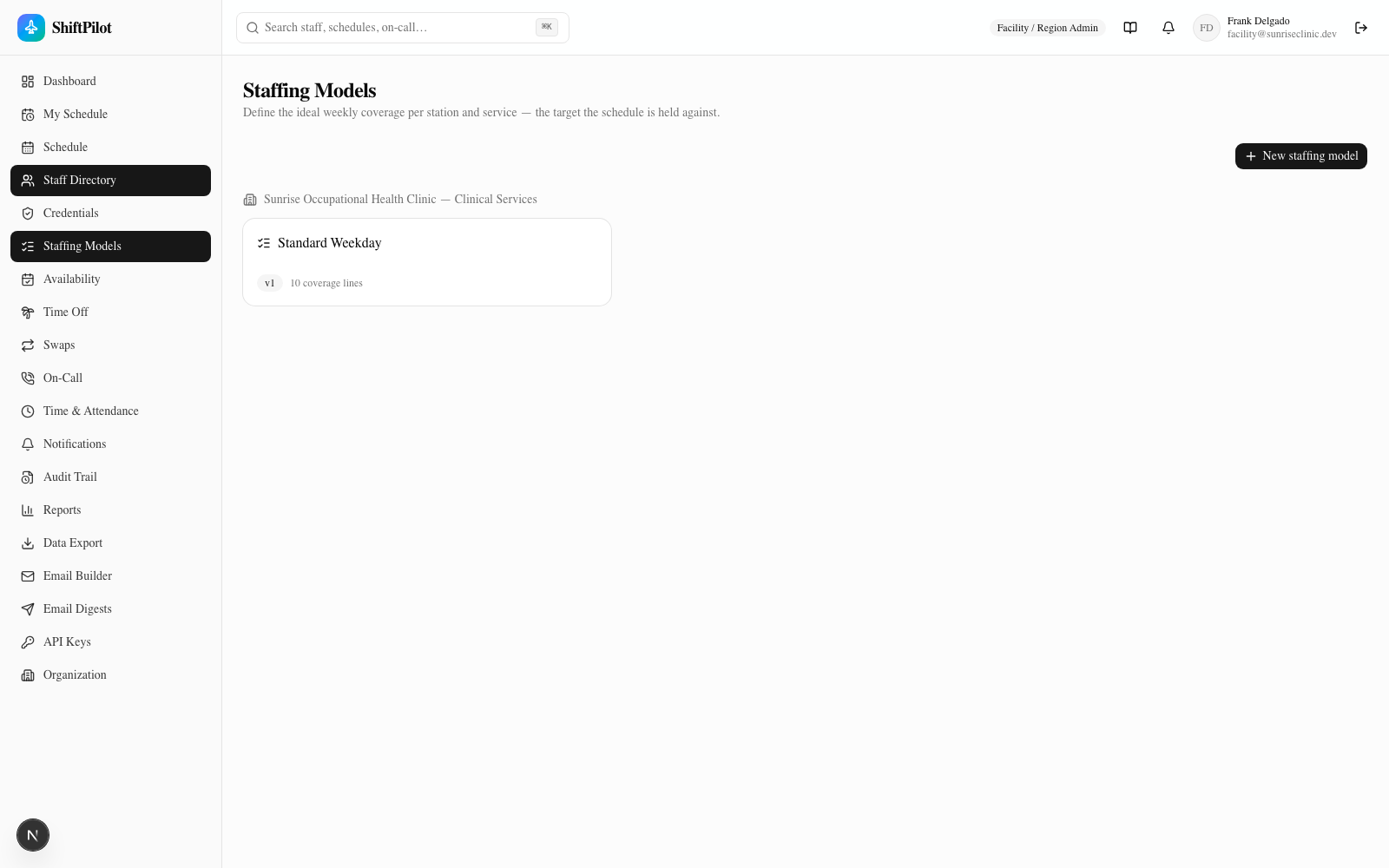
Before you can schedule anyone, something has to say who is supposed to be where. That's a StaffingModel —
a named, versioned template scoped to a department (/staffing-models). A model is really just a container for
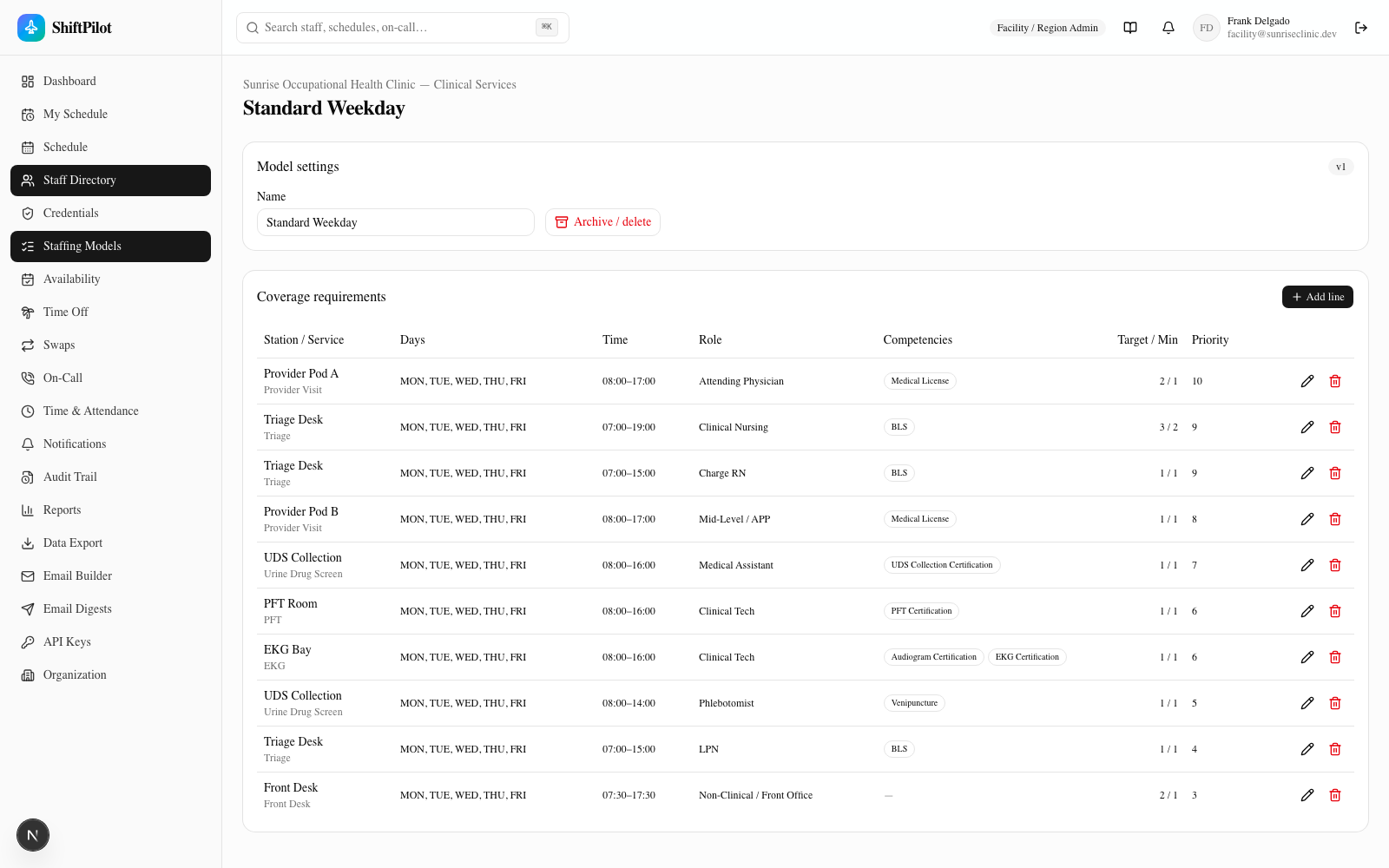
CoverageRequirement lines, and each line is a single sentence: this station, doing this service, on these
days, during this time window, needs this many people of this role, with these competencies.
Concretely, each CoverageRequirement line captures:
| Field | Meaning |
|---|---|
| Station / Service | Where, and which work stream (Triage, EKG, PFT, Provider Visit, UDS Collection, ...) |
| Day pattern | Which days of the week this line applies (e.g. Mon–Fri, or Sat only) |
| Time window | Start/end time, e.g. 08:00–17:00 |
| Role or role group | A specific role type (e.g. Attending Physician) or a whole role group (e.g. any Mid-Level/APP) — or left open to any role |
| Required competencies | Credentials a person must actively hold to fill this line (e.g. EKG certification for the EKG Bay line) |
| Target count | The ideal number of qualified staff for this window |
| Minimum count | The floor — drop below this and it's a critical gap, not just a soft shortage |
| Priority | Used to sort/weight alerts when multiple gaps compete for attention |
A department's model is usually a dozen or so of these lines stacked together — e.g. a weekday might need 2 Attending Physicians on Provider Visit 8a–5p, 3 RNs on Triage 7a–7p, 1 Tech with a PFT competency on the PFT Room 8a–4p, and so on. Multiple lines compose the full picture for a single day:
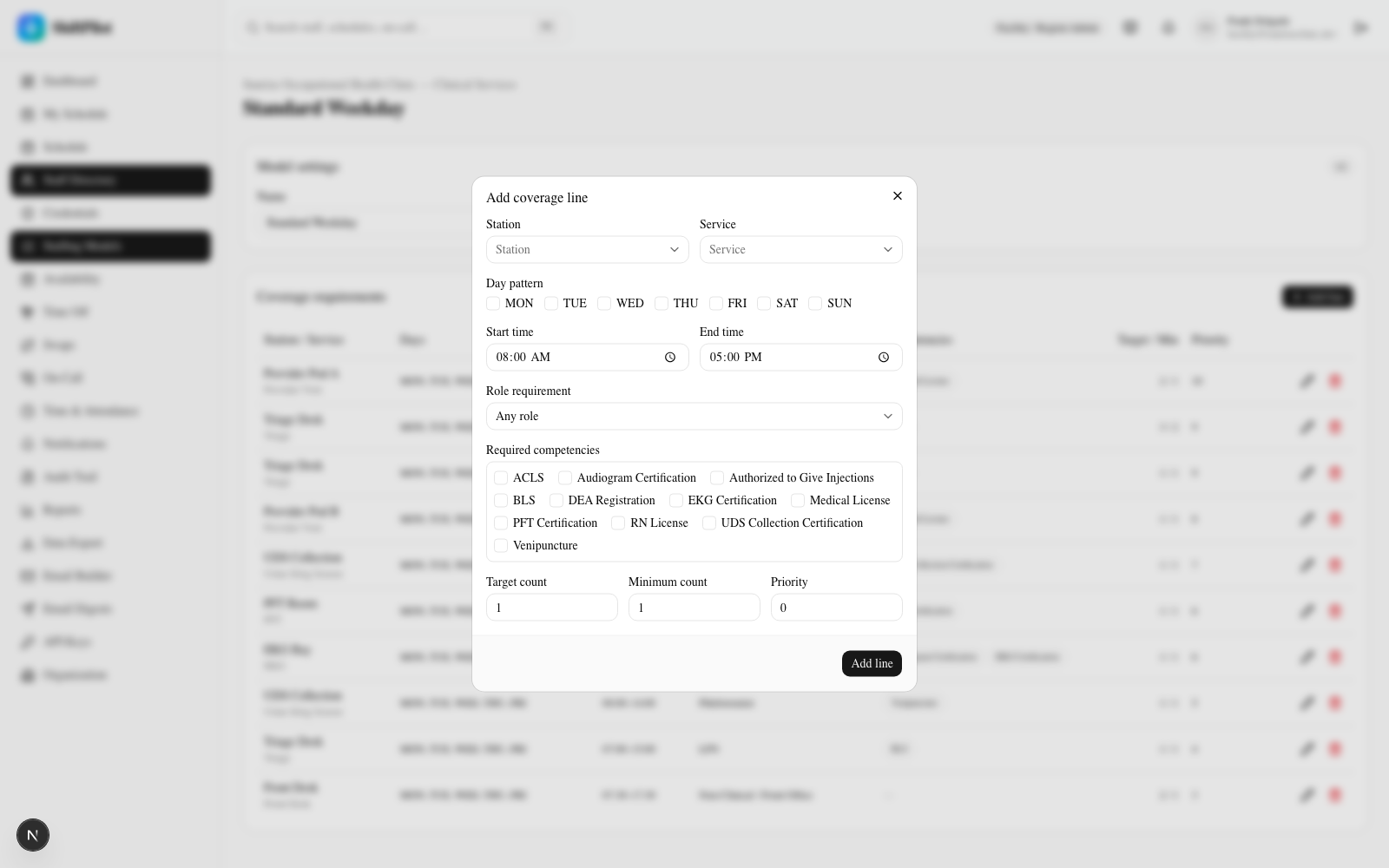
To create or edit a model:
- Go to Staffing Models and click New staffing model, giving it a name and a department.
- Open the model and Add line for each station/service/window you need covered — pick the station, service, day pattern, time window, role restriction, required competencies, and target/minimum counts.
- Save. The model's requirement lines are what the coverage engine diffs the actual schedule against — see below.
A model can be archived once it's no longer in use (its coverage lines stop being counted, but history is preserved). Minimum count can never exceed target count — the editor blocks that as a basic sanity check.
This is the "ideal" referenced throughout the rest of this page: every cell on the grid, every count in the banner, ultimately traces back to a CoverageRequirement line here.
The eligibility rule, in plain language
A staff member can be dropped into a slot only if all three of these are true:
- Competencies — every competency the slot requires is present on their profile, with status
ACTIVE, and not expired as of the shift date. Missing it, or holding it expired/pending, fails this check. - Role — their role type matches what the slot requires (a specific role, or any role in the required role group, or the slot has no role restriction at all).
- Location — the station is either their home station or one of their explicitly qualified stations.
This isn't a suggestion layered on top of the grid — evaluateEligibility() is called on every drag-over and
every drop, and it's the same function used everywhere else in the app that assigns people to something (open
shift fill lists, swap eligibility, on-call). There's exactly one place this logic lives, so the answer never
drifts between modules.
The scheduling grid
/schedule has two view modes, a department picker, and a week navigator (previous/next week, or jump back to
This week):
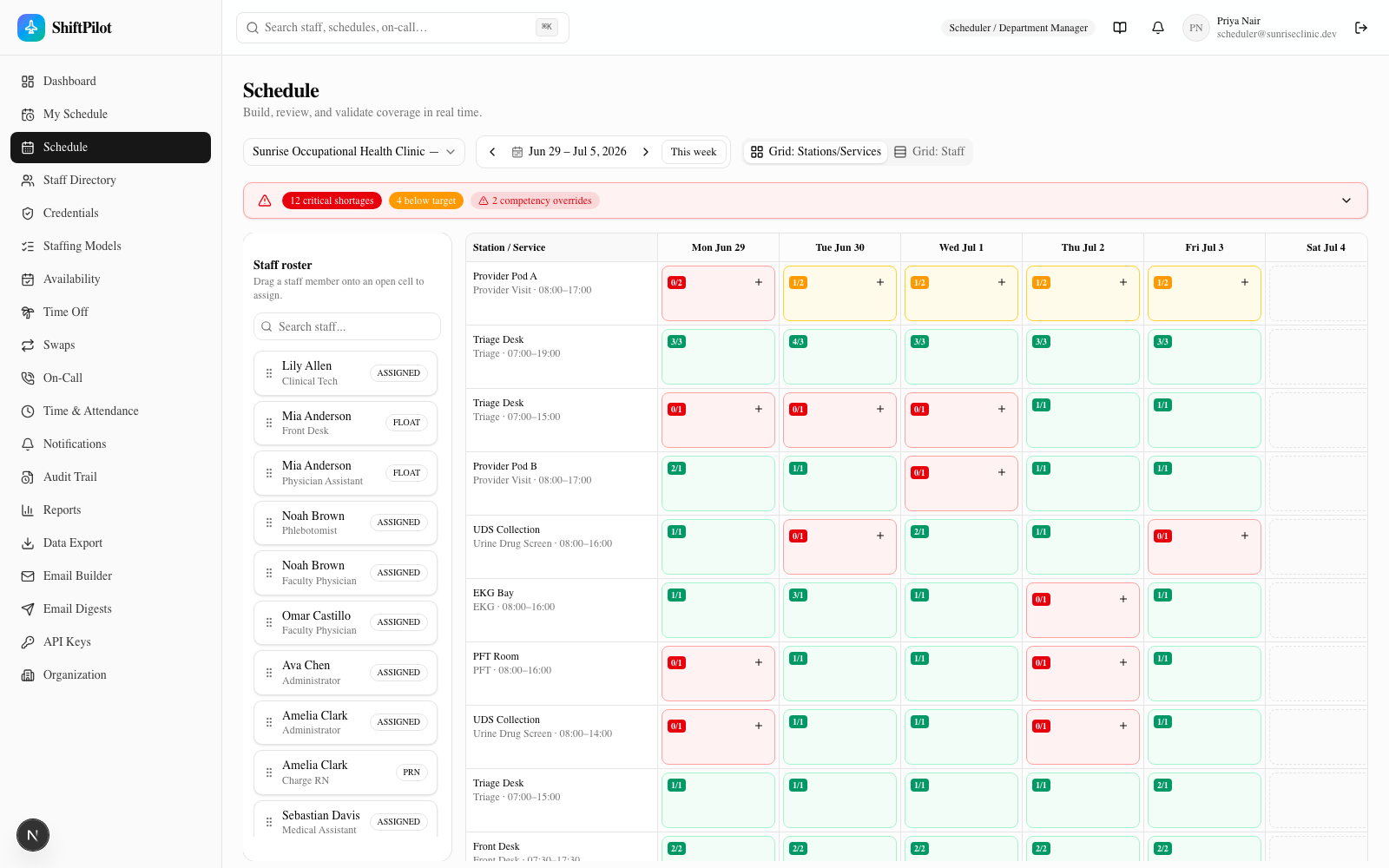
- Grid: Stations/Services — rows are station × service coverage requirements, columns are days. Each cell
shows
assigned/targetand lists the assignment chips currently filling it. This is the best view for spotting gaps at a glance — it's what you land on by default, and it's the screenshot above. - Grid: Staff — rows are individual staff members, columns are days. This is the classic build view for reasoning about one person's week at a time.
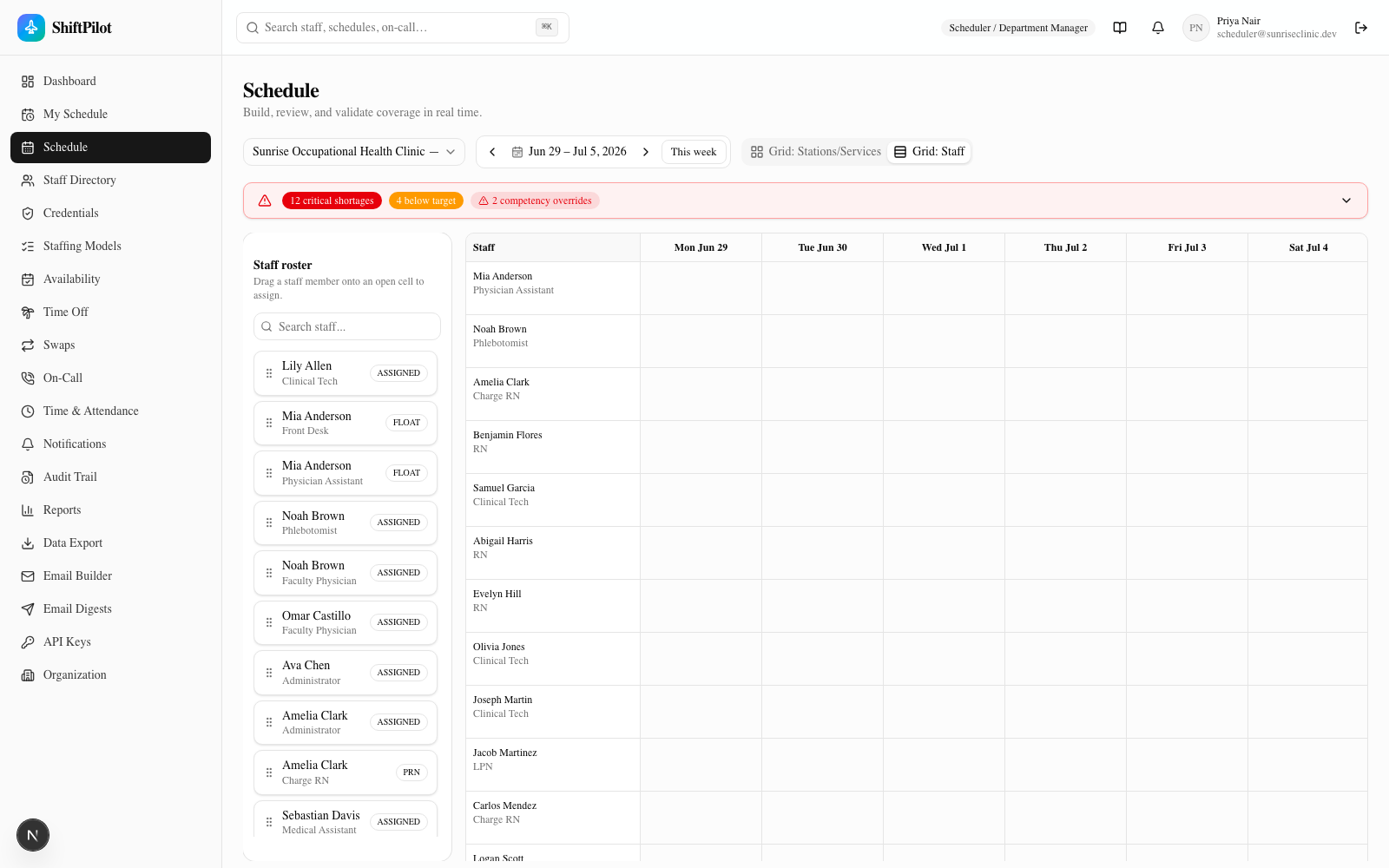
Drag-and-drop mechanics
- Assign — drag a chip from the staff roster (left panel) onto an open cell in the grid. The roster is searchable by name or role, and shows each person's employment type (Assigned/Float/PRN) as a badge.
- Move — drag an existing assignment chip from one cell to another (a different day, station, or — on the Staff view — a different person) to reassign it.
- Read-only roles see the roster and grid without drag handles, with an explicit "Read-only — drag & drop disabled" notice in place of edit affordances.
The color system
Both the station/service header count and each cell are colored by how coverage compares to the model:
| Color | Meaning |
|---|---|
| 🟢 Green | At or above target — fully covered |
| 🟠 Amber | Below target but at or above minimum — a soft shortage |
| 🔴 Red | Below minimum — a critical shortage (or, during a drag, that the person being dragged is ineligible for the cell) |
The seed data intentionally ships with plenty of real shortages and overstaffed windows already in place — the screenshot above shows red critical gaps (e.g. Provider Pod A on Monday at 0/2), amber below-target windows, and green fully-staffed rows side by side, with no setup needed to see the system doing its job.
While dragging, the cell you're hovering over rings green if the person you're holding is eligible for that slot, or red if they aren't — so you get the answer before you release the mouse, not after.
Live eligibility validation & the override flow
Every drop calls the eligibility rule server-side, not just on the client — so the check can't be bypassed by skipping the drag-over highlight. Two outcomes:
Blocked (no override permission). If the drop is ineligible and the acting user doesn't hold
canOverrideCompetency, the assignment is rejected outright and a toast explains exactly why:
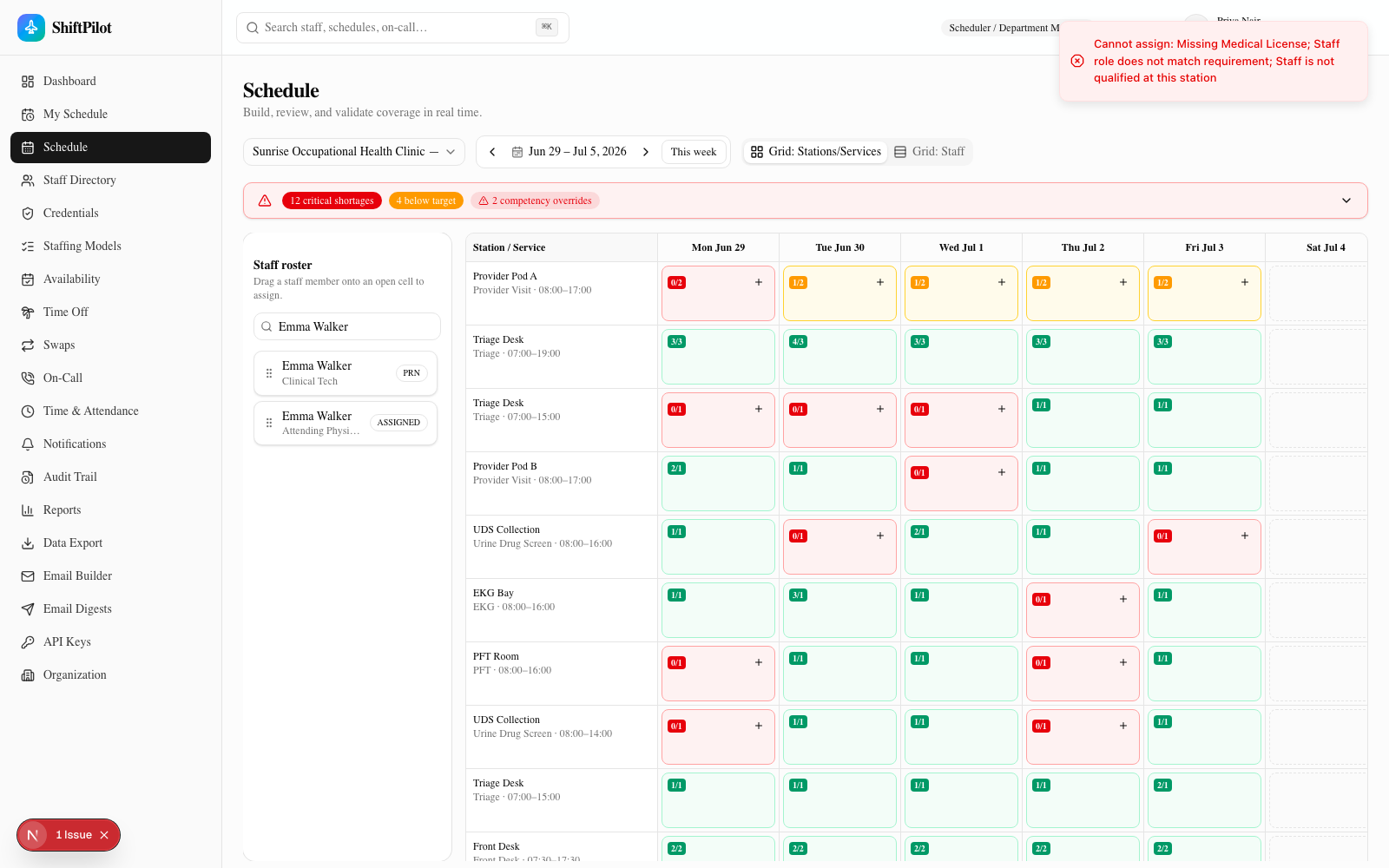
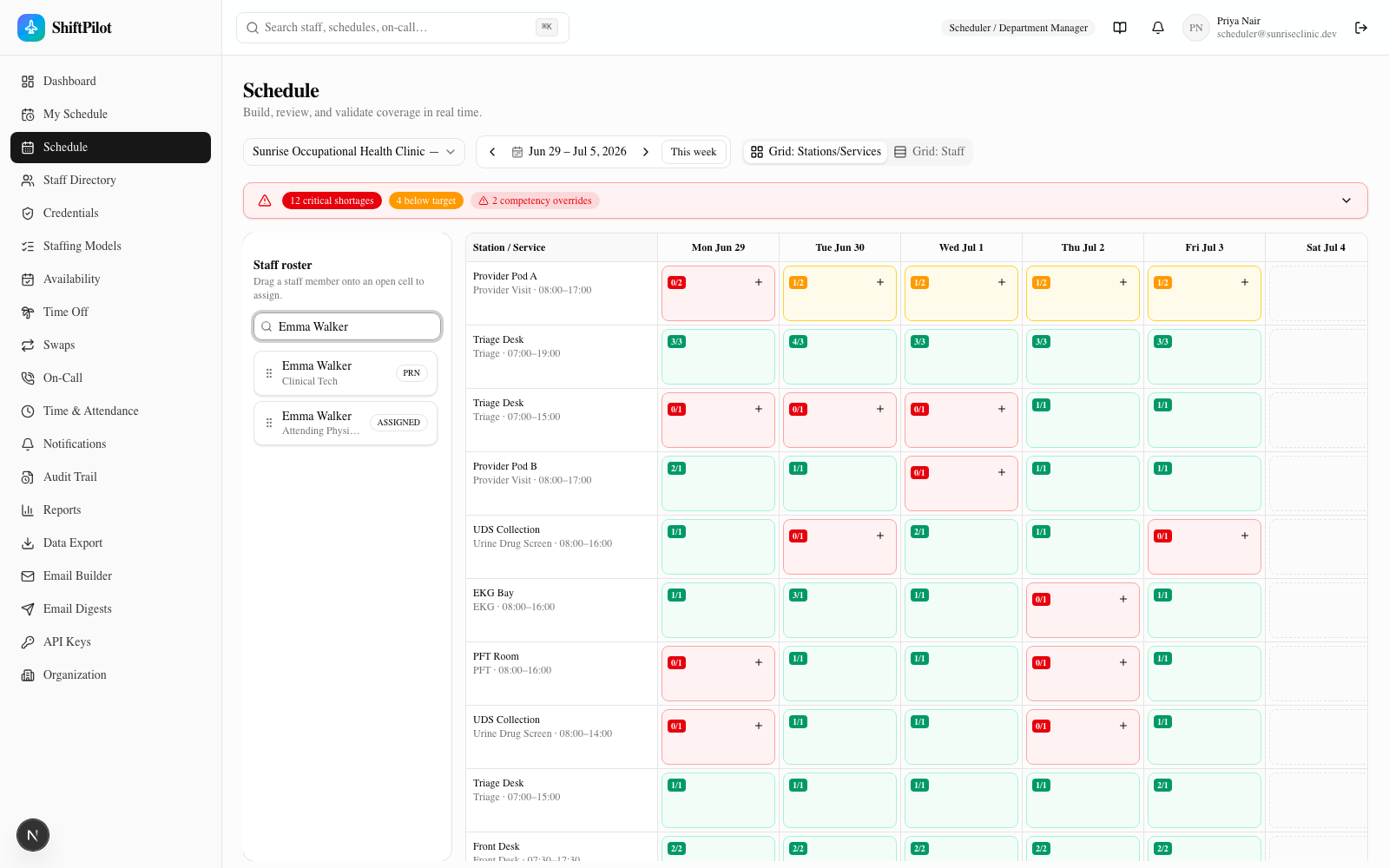
In this example, a Clinical Tech named Emma Walker was dragged onto a Provider Visit slot. The seed data deliberately includes two different staff members named Emma Walker — one an Attending Physician, one a Clinical Tech — specifically so you have to check the role label under the name (visible on the roster chip and in the search results below) rather than assuming the name alone identifies the right person.
The toast lists every failed check at once — in this case all three: missing the required competency, role mismatch, and not qualified at that station.
Overridden (with permission). If the acting user does hold canOverrideCompetency (Facility Admin and
above by default), the same blocked drop instead opens the override dialog, showing the same list of reasons
and requiring a written reason before it will let the assignment through:
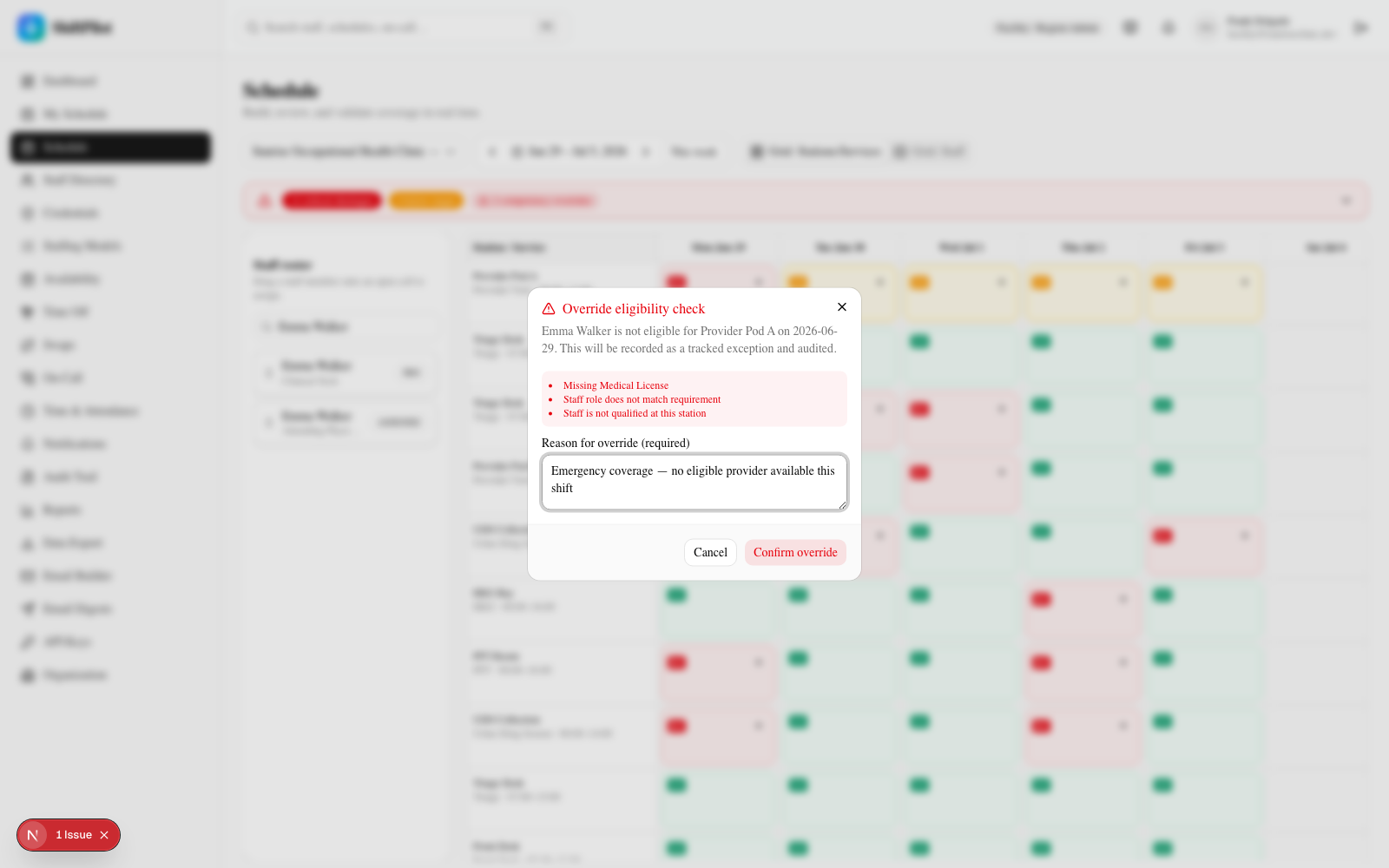
Confirming commits the assignment anyway, but flags it as a tracked exception: the chip renders with a distinct red/destructive style and a warning icon, the action is written to the audit trail with the reason attached, and — critically — it still counts toward the station's assigned headcount (so the shortage banner doesn't lie about a gap that's technically filled) while simultaneously incrementing the "competency override" counter, so the fact that it's an unqualified placement is never hidden. You can see both effects together immediately after confirming:
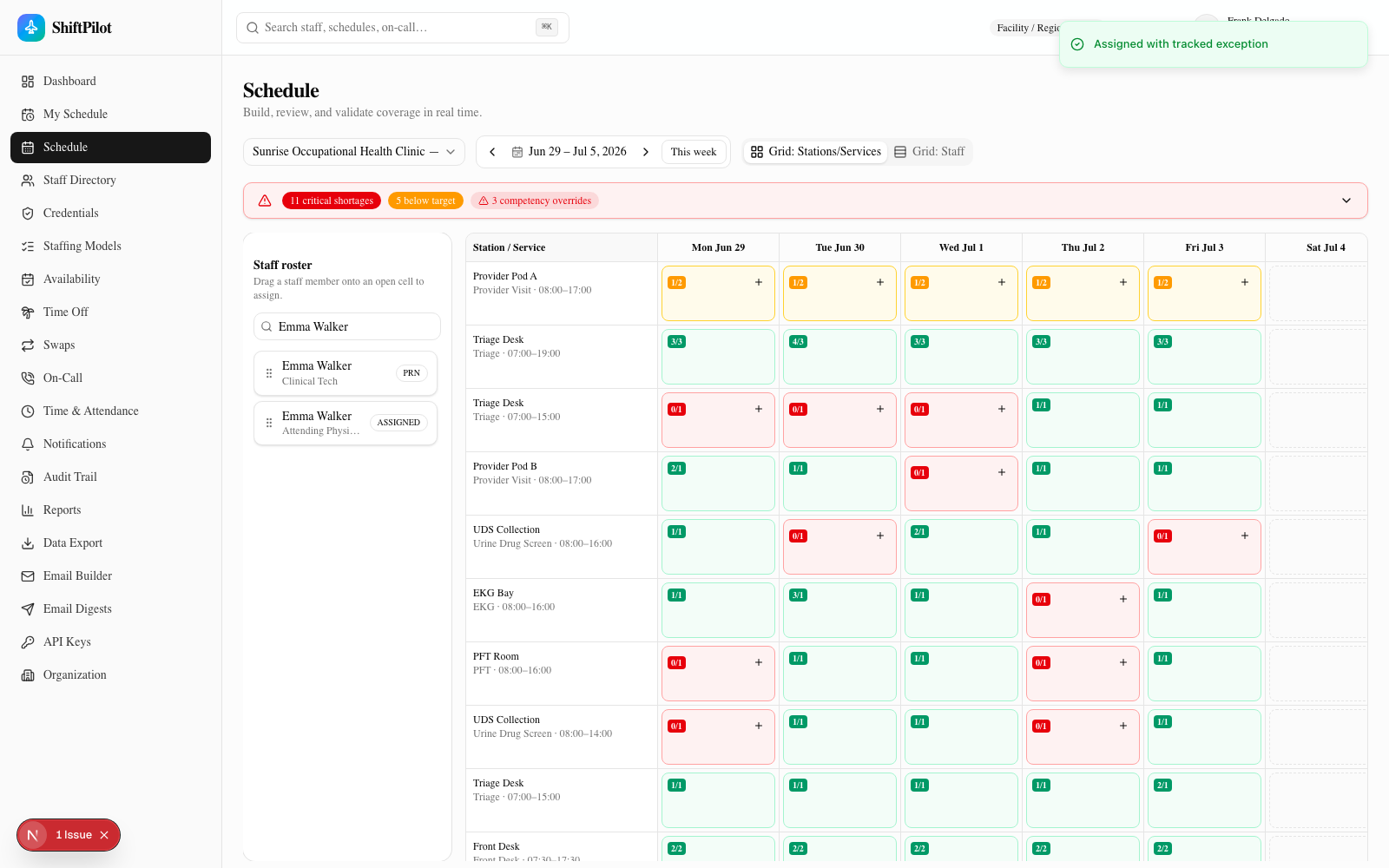
Notice the banner recalculated in place — critical shortages dropped from 12 to 11 (the slot is now filled) while competency overrides rose from 2 to 3, all without a page reload.
The coverage & shortage banner
A persistent banner sits at the top of every grid view, rolling up the state of everything currently in scope: "N critical shortages · N below target · N competency overrides." When there's nothing to report, it collapses to a single reassuring "Fully covered — no shortages in this view" state.
Click it to expand a drill-down panel listing every individual gap — station, service, date, time window, the
current assigned/minimum shortfall — each with a Jump to cell link that scrolls the grid to that exact cell
(switching to Grid: Stations/Services first if you were on the Staff view):
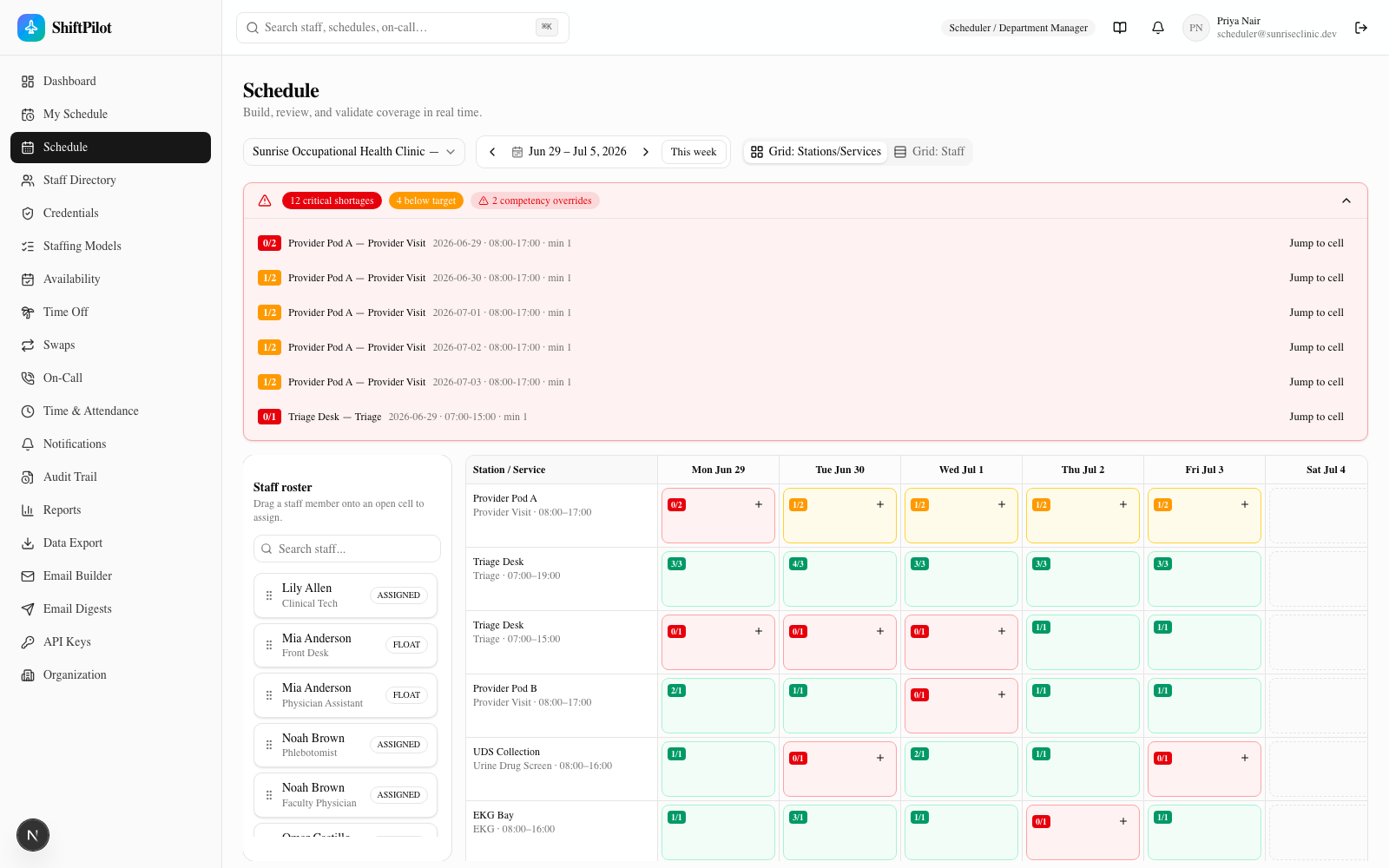
The banner is driven by the same computeCoverage() call that powers the dashboard's coverage tiles and the
weekly clinic-snapshot email — one function, three surfaces, so the numbers never disagree with each other. It
recomputes immediately after any assignment change (create, move, or cancel) because the client simply
revalidates the underlying data; there's no separate "refresh coverage" step to remember.
Where else this shows up
- For how staff request time off or swap out of an assigned shift themselves — including how that ripples back into coverage — see Availability, Time Off & Swaps.
- For how the same staffing gaps also show up in the weekly email digest sent to managers, see Email, Calendar & API.
Fill suggestions (ranked)
When you open a shift's day-detail sheet (tap or click a grid cell), the Suggested fills section doesn't just list who's eligible — it ranks them best-first so you pick the right person at a glance. Each candidate is scored on:
- Availability fit for that day (preferred → available → neutral → marked-unavailable)
- Fairness — fewer hours already scheduled that week ranks higher, to spread the load
- Home-station familiarity and per-diem preference
- A heavy penalty for anyone already working that day, so you don't double-book
The top candidate is tagged Top pick, and each row shows the reason ("Preferred · 16h this week · home station"). One click assigns them. This is powered by the same eligibility engine as drag-and-drop, so a suggested fill is always a legal assignment.
Float pool
Scheduling → Float Pool is a read-only board that matches your flexible workforce (float and per-diem staff) to the shifts still open in the next 30 days — including shifts at other facilities they're qualified to cover. Each pool member shows their qualified locations and exactly which open shifts they can fill, so cross-site gaps get filled from the people who can actually work them.